
Goals & Communication Settings
Automation Goals
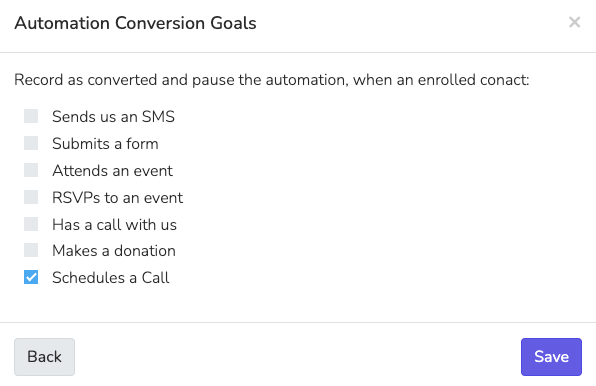
Automation goals define the desired outcomes for each workflow. Once a goal is achieved, the automation will stop for that supporter, preventing unnecessary follow-up. These goals are critical to measuring the success of your engagement strategies and ensuring that automations focus on moving supporters toward meaningful actions.
Available Goals
- Sends us an SMS: Counts any text that the supporter sends to you. The text does not need to be a reply to the automation.
- Submits a form: Counts a submission of 'Any form' or of one 'Specified form' page.
- Attends an event: Counts when the supporter's attendance is recorded. You pick 'Any event' or one 'Specified event'. A specified event counts attendance at any of its sessions.
- RSVPs to an event: Counts only a Yes RSVP. You pick 'Any event' or one 'Specified event', which for this goal is one session.
- Has a call with us: The goal has three choices: 'Any duration', 'More than 2 mins', and 'More than 5 mins'. 'Any duration' counts every call that ended, whatever its length. It does not check that the supporter answered.
- Makes a donation: Counts only a successful donation charge.
- Schedules a Call: Completes when a supporter schedules a call, ensuring they are engaged with an organizer.
Automation goals help you understand which supporters are engaged and have completed their journey through your automation. By tracking these conversions, you can determine what messages resonate most and use that insight to refine future campaigns.
Communication Settings
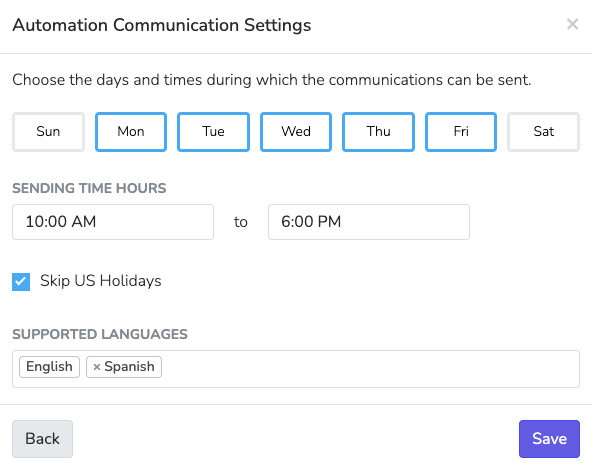
Click 'Communications Settings' on the automation to open 'Automation Communication Settings'. The Communication Settings control how and when messages are sent throughout the automation. The day and hour limits apply only to the Send email, Send text, and Send admin notification email steps. These settings ensure that your supporters receive messages at appropriate times and in their preferred language.
Days of Communication
Define which days communications are allowed to be sent. For instance, you can select weekdays (e.g., Monday through Friday) if your supporters are less responsive on weekends. This helps you tailor outreach to times that are more convenient and effective for your audience.
Sending Time Hours
Specify the time range for sending messages. This ensures that communications are delivered during optimal times of the day, such as business hours (e.g., 10:00 AM to 6:00 PM), avoiding early mornings or late nights when messages may be ignored.
Skip US Holidays
The Skip US Holidays feature ensures that messages are not sent during national holidays, showing respect for supporters' personal time and avoiding the low engagement typically seen during these times. This option helps maintain a positive relationship with your audience.
Supported Languages
Solidarity Tech's Automations offer multilingual capabilities to ensure that supporters receive messages in their preferred language. You can specify supported languages (e.g., English, Spanish) for each workflow, enhancing the personalization and effectiveness of communications across diverse communities.
Automation Scope
The Scope setting defines which supporters can be enrolled in a specific automation. This helps keep your automations organized and ensures that only relevant contacts are included.
- Chapter Scope: Limits enrollment to contacts associated with a specific chapter. This is useful when targeting a local campaign or event.
- Organization Scope: Allows contacts from across the entire organization to be enrolled. This is ideal for organization-wide campaigns and initiatives.
Defining the scope helps ensure that the right contacts are engaged, avoiding unnecessary outreach to supporters who may not be relevant to a particular campaign.
By configuring goals, communication settings, and scope effectively, you can ensure that each automation drives towards impactful actions while respecting your supporters' preferences and maximizing engagement.
Updated 2 days ago