
Attendance
Recording attendance is how you capture who actually showed up—not just who RSVP'd. This data becomes powerful for future organizing: you can filter and target people who attended specific events, track participation trends, and identify your most engaged members.
To access attendance, click the Attendance button in the top right of any event page in the dashboard.
Selecting a Session
For events with multiple sessions, use the dropdown in the top right to select which session you're recording attendance for. You can also choose All Event Sessions to see a combined view of everyone who attended any session.
When using the attendance page at a live event, make sure you've selected the correct session before adding attendees.
Live Check-In
The attendance page works great as a check-in station. A Team Member can staff a table with a laptop or tablet, search for people as they arrive, and mark them attended in real-time.
Searching for Attendees
Start typing in the search field to find people. You can search by:
- Name (first, last, or full name)
- Phone number (any format—we'll figure it out)
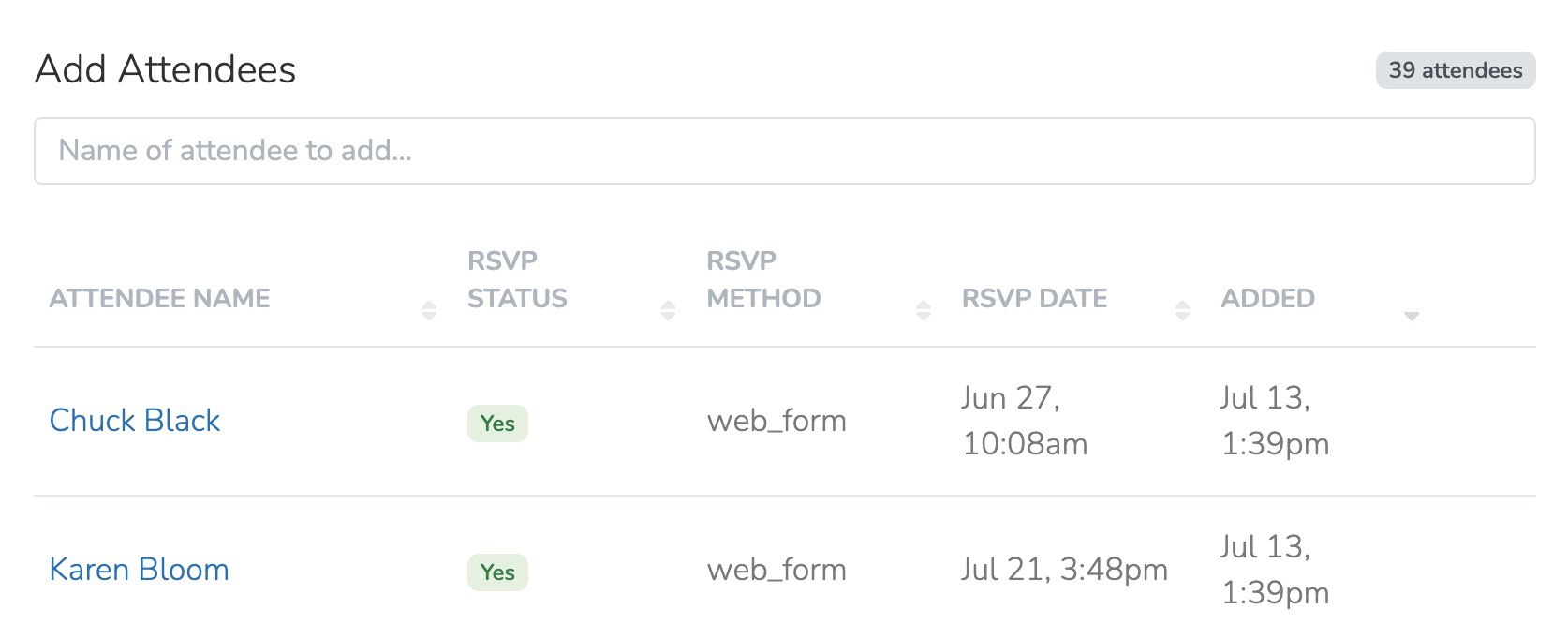
People who previously RSVP'd to the event will show their RSVP status alongside their name, making it easy to check off expected attendees.
Adding Someone New
What if someone shows up who isn't in your database? No problem—you can add them on the spot.
When you search a phone number that doesn't match anyone in your system, you'll see an option to add them as a new contact. Click it, fill in their name, and they'll be created as a new Person and marked as attended—all in one step.
This is especially useful for events where walk-ins are common. You're capturing new contacts while also tracking attendance.
Host Tools
Need to let someone track attendance without giving them dashboard access? Host Tools provides a simple, shareable link that lets event hosts view RSVPs, mark attendance, and contact attendees from their phone, no login required.
This is ideal for volunteer hosts, field leads, or coalition partners running events on your behalf. See Host Tools for details.
Self Check-in
You can also let attendees check themselves in without a host. When Host Tools is enabled, each session gets a self check-in link and QR code. Display the QR code at your event and attendees can check in from their own phone by entering their name, phone number, and email. New contacts are automatically added to your database and marked as attended. See Host Tools for setup details.
The Attendance List
Once you've added attendees, you'll see them in a table with helpful context:
| Column | What it shows |
|---|---|
| Attendee Name | Links to their profile |
| RSVP Status | Whether they RSVP'd Yes/No/Maybe, plus a ✓ if confirmed |
| RSVP Method | How they RSVP'd (mobile app, web form, manual, etc.) |
| Touches | Timeline of outreach leading up to the event |
| Dates | When they RSVP'd and when attendance was recorded |
To remove someone from the attendance list, click Delete on their row.
Zoom Attendance
There are two ways to track attendance for Zoom meetings:
Automatic Sync (Recommended)
For events with Zoom connected, attendance is synced automatically about 30 minutes after the meeting ends. No manual work required.
How it works:
- People RSVP and receive personalized Zoom join links
- They join the meeting using their link
- After the meeting ends, Solidarity Tech fetches participant data from Zoom
- Attendees are matched by their registration ID (most reliable) or email
- Attendance records are created automatically
Best matching: When people use their personalized join link, they're matched by their Zoom registration ID—this is 100% accurate. People who join with a different email or as a guest can still be matched by email within your organization.
Manual CSV Upload
You can also upload a CSV export from Zoom to mark attendance manually. This is useful for:
- Events not using the Zoom integration
- Catching attendees who weren't matched automatically
- Historical events
Exporting from Zoom (Meetings):
- Go to your Zoom account
- Navigate to Reports → Usage Reports → Active Hosts
- Select a time range and find your meeting
- Click the Participants number
- Export the participant list as a CSV
Exporting from Zoom (Webinars):
Export the attendee report from your webinar's reporting page.
Uploading the CSV:
On the Attendance page for a virtual event, you'll see an info box with a link to upload a Zoom CSV. Click it, select your file, and the system will process it.
How CSV Matching Works:
The system tries to match Zoom participants to People in your database using:
- Email (case-insensitive match)
- Phone number (with smart formatting)
- Full name (only if there's exactly one person with that name)
After processing, you'll see two tabs:
- Found: People we matched successfully. Each has a checkbox so you can deselect anyone before adding. Click Add Attendance to confirm.
- Not Found: Participants we couldn't match. Shows their name, email, and time in session so you can manually look them up or add them later.
The "Not Found" list often includes people who registered with personal emails or nicknames that don't match their record in your database. You can use this list to manually add them or update their profiles.
Using Attendance Data
Once you've recorded attendance, that data becomes available throughout the platform:
- Filters: Create segments of people who attended (or didn't attend) specific events
- Automations: Trigger follow-up sequences for attendees
- Reporting: Track attendance rates over time
- Outreach: Target attendees for related future events
Recording attendance consistently is one of the simplest ways to build a richer picture of member engagement.
Updated 7 months ago