
Phonebank Workflows
This page shows team members how to work a phonebank in the Solidarity app. For details on how to create phonebanks in the dashboard, refer to that documentation.
1-1
A 1-1 phonebank gives you a call workflow consisting of a list of targeted supporters, dynamically sorted and re-sorted into two sections ("TO CALL" and "TRY CALLING AGAIN"). This structure makes it easy to call people multiple times if they don't pick up initially.
In practice, it almost always makes sense to call the next Person at the top of your call workflow list.
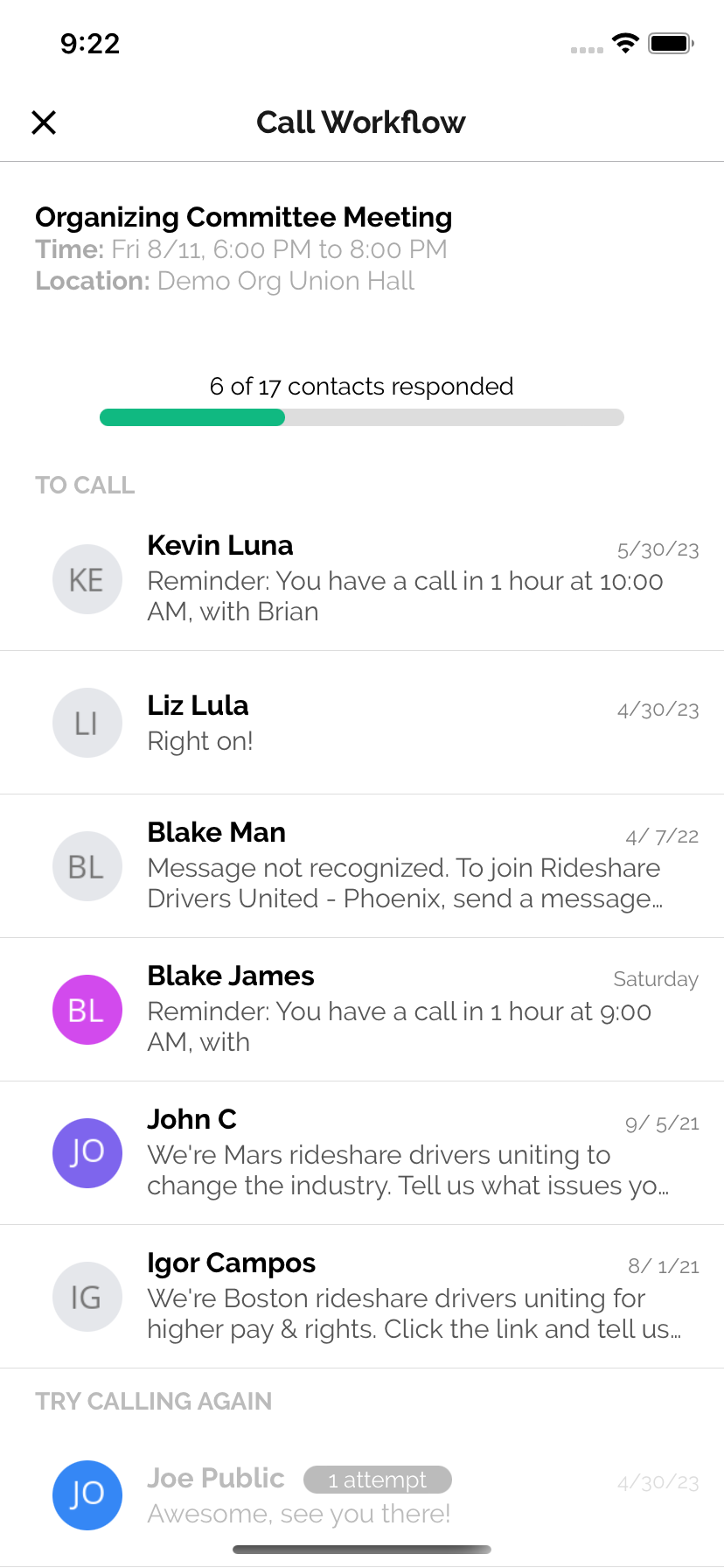
Tap a person on the list to review their profile, then click the call button when you're ready to initiate the call. If you're mobilizing for an event, sure to record the RSVP Yes/No/Maybe response to advance your workflow progress.
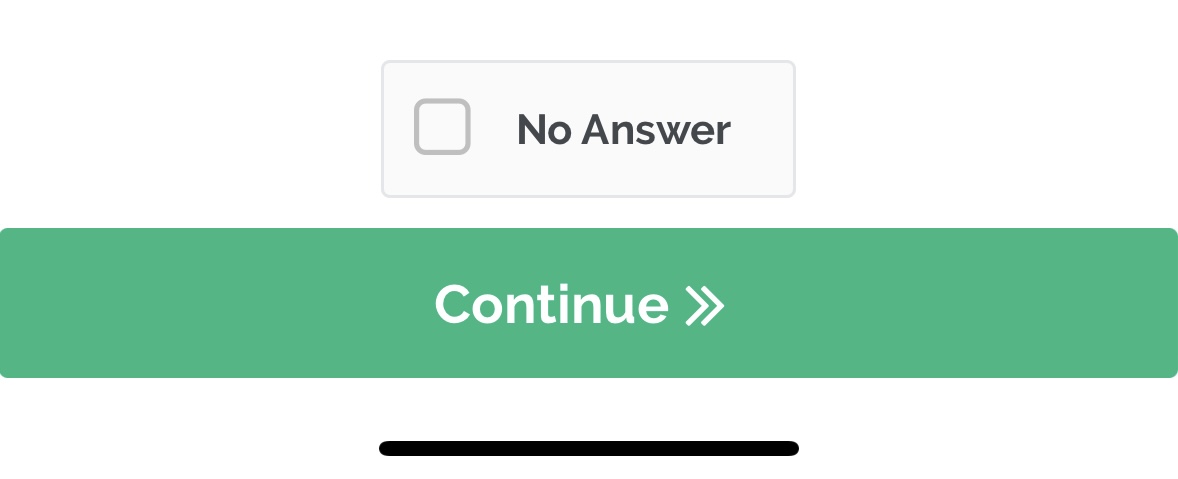
Once the call is completed, you'll see a "Continue" button at the bottom of the call screen. Tap that button to return to your call workflow, which will refresh and give you a new Person at the top of the list to call.
In addition to re-sorting after every call, the workflow list will keep a tally of how many times you've attempted to call each Person.
Power Dialer
When you enter a power dialer workflow from the "Workflows" tab, you'll be taken to a screen that looks like this:
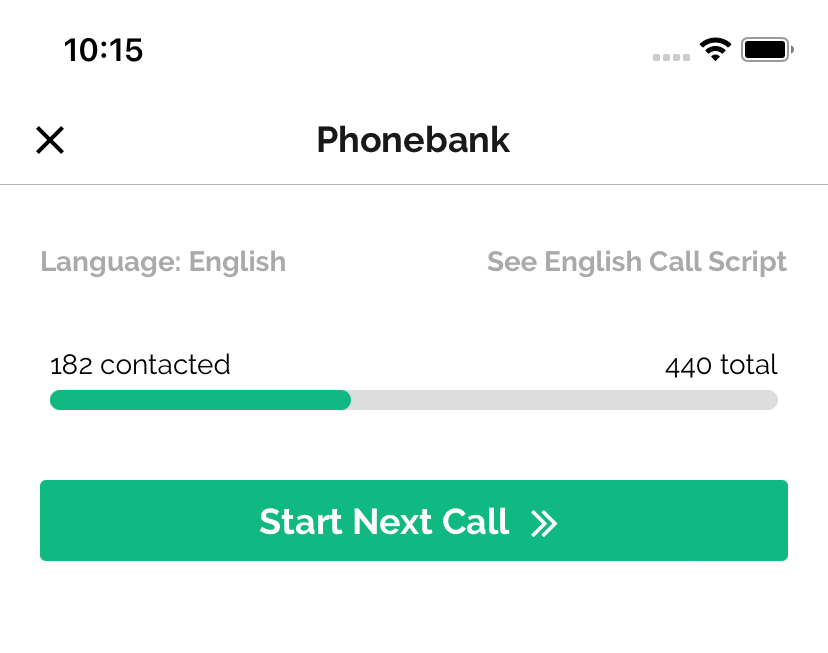
From this phonebank screen, you'll be able to view the joint progress bar shared by all Team Members participating in the phonebank. To read the call script, tap "Script" next to the "Press the button to begin next" line. The calling language starts as your preferred language. With two or more languages on your Person record, use the language button at the top right to switch.
Tap the "Start Next Call" button to open a call screen for the next Person.
Once you've completed the call, a button will appear at the bottom of the call screen. Once you're ready, tap this button and you will be taken to the next call on the list.
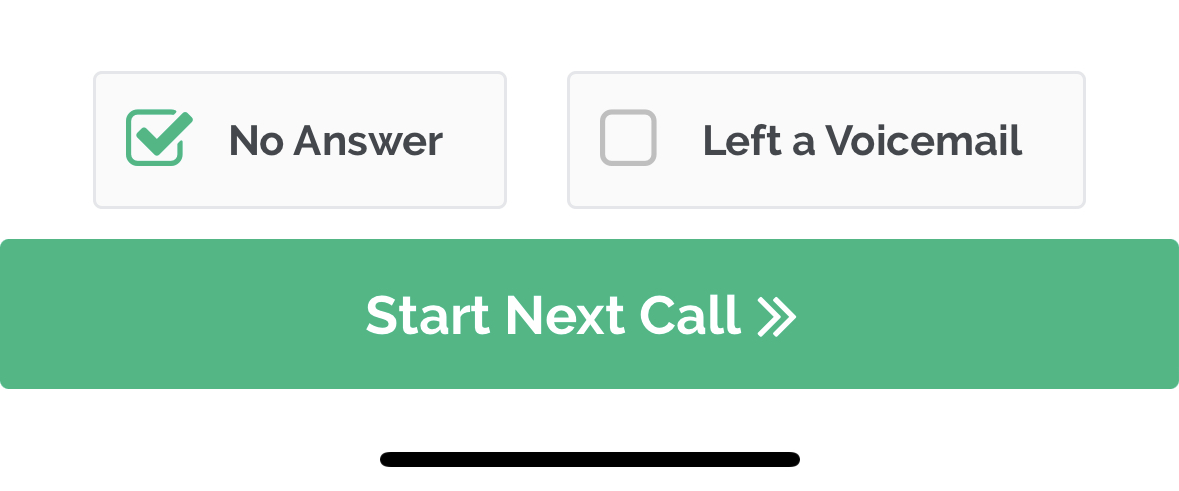
Like this, you and your fellow Team Members will be able to quickly work through a list of contacts
Predictive Dialer
The predictive dialer is the last and most efficient type of phonebank that you can access from the "Workflows" tab. It is on the Professional and Enterprise plans.
For a predictive dialer, you will need to use your regular phone line to for audio. You should not hang up the regular phone line call until you are completely finished phonebanking. The power of a predictive dialer is that the software "predicts" how many supporters will pick up the phone vs not answer, in order to determine how many calls it should make in the background in order to ensure you and your Team Members are spending as much time talking with supporters as possible. You will never have to wait around listening to the dial tone. Once a supporter picks up the phone and says "hello," they will immediately be connected with you to begin the conversation.
Here's how it works. In the "Workflows" tab, find the predictive dialer phonebank and tap "Begin Making Calls". The "Enter Phonebank" screen opens. Here, you'll see the name of the phonebank along with basic instructions on how to begin
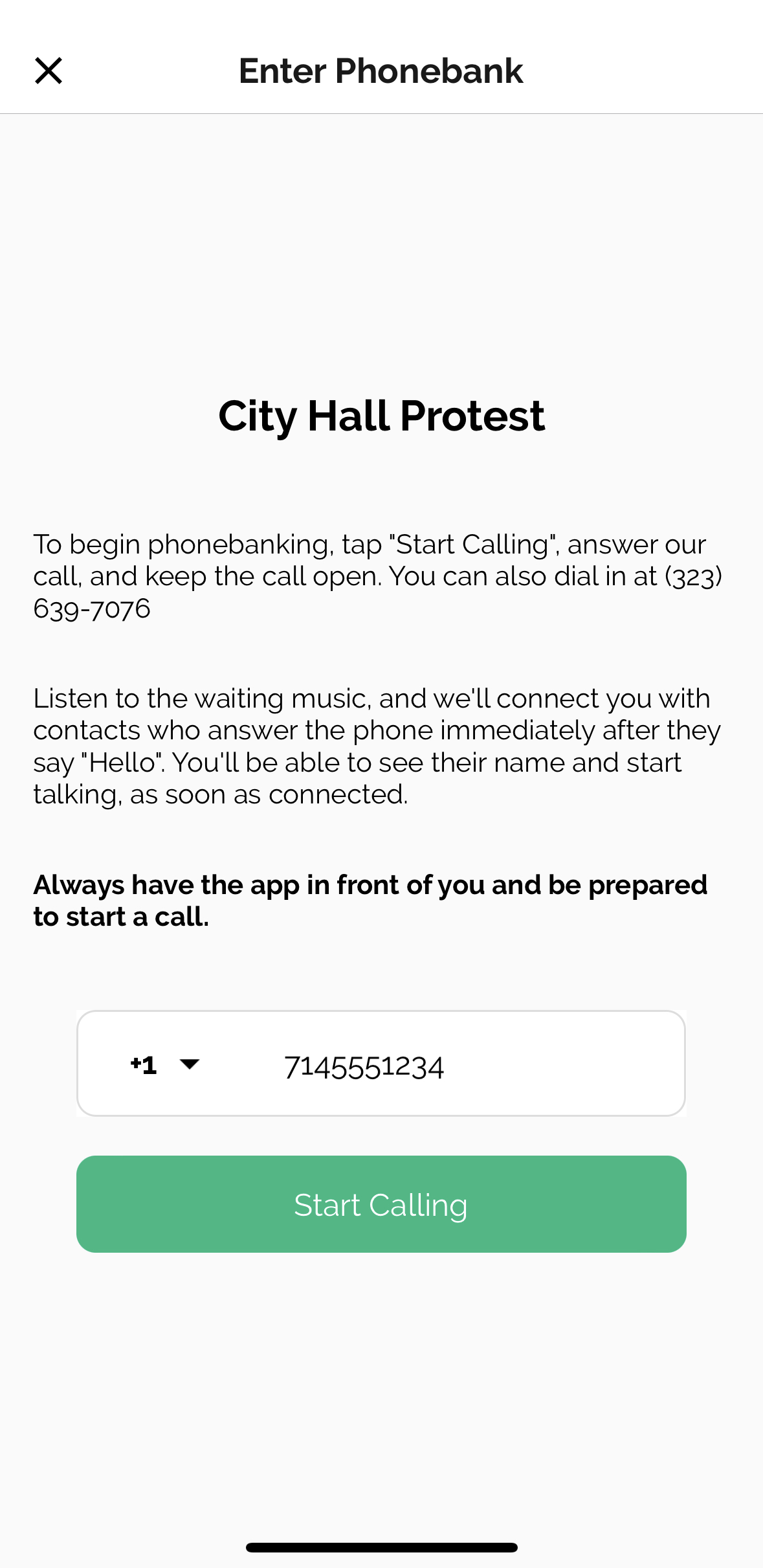
First, connect your phone line to the phonebank to enter the waiting room. There are two ways to get connected, you only need to do one of them:
- Simply ensure that your correct phone number is listed in the input field, tap the "Start Calling" button. You will immediately be called at that number - simply pick up the phone and say "Hello."
- Directly call the specified phone number listen in the first paragraph of the instructions on the screen.
Once you're connected on the phone line, you'll immediately hear the waiting room music. The app then opens the waiting room screen. From this point, be ready to talk to a supporter at any moment.
When you hear the waiting room music stop, that means you were just connected to a supporter and should begin talking. Your app will also be pushed to the active call screen where you can see the name of the supporter on the other end of the line. At this point, immediately start talking. The Person on the other end of the line will have already said "hello" and experienced a delay of a couple seconds while the system connected them with a waiting Team Member (you), so it's important that you quickly greet them before they hang up.
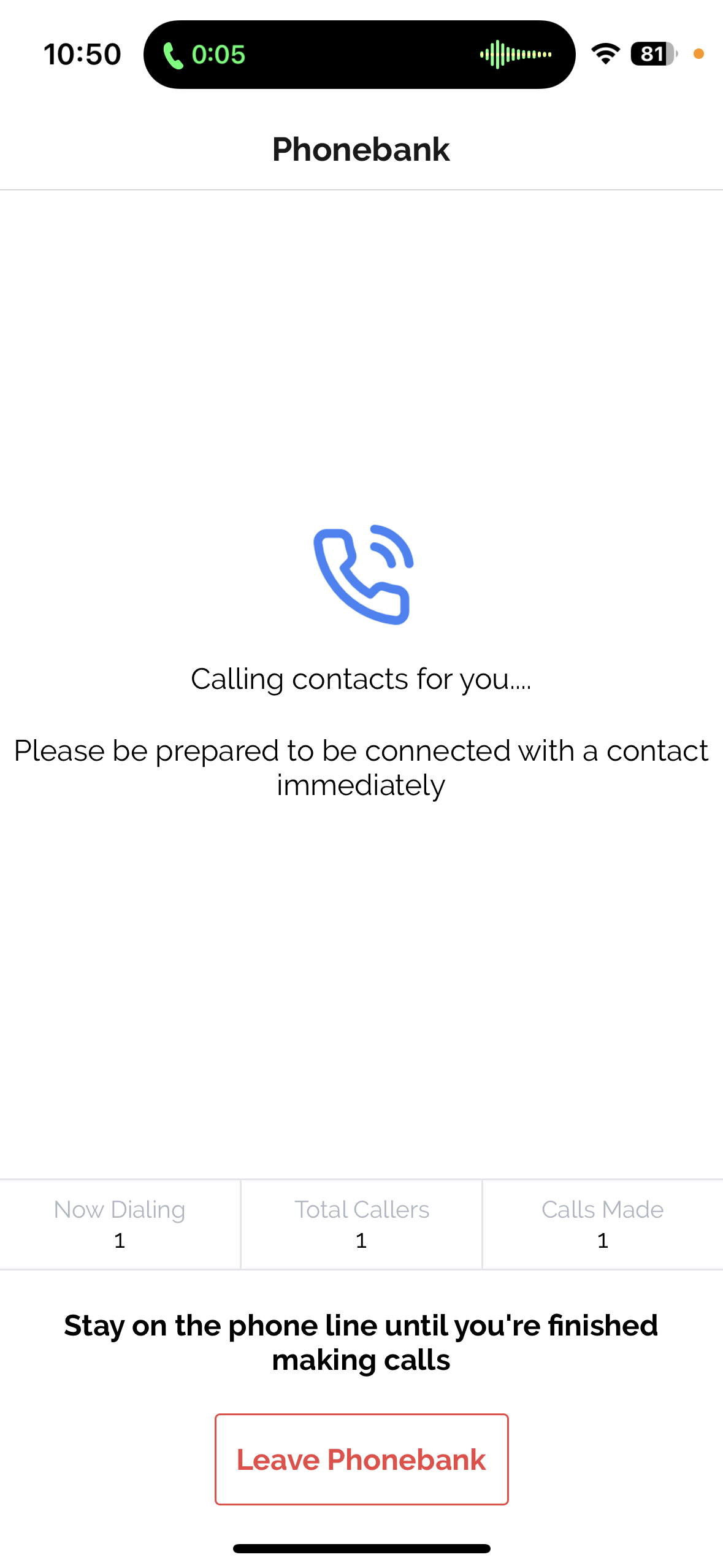
After you complete a conversation, the audio on the line will be silent as it waits for you to wrap up any notes or follow-up you need to complete on the call screen before beginning the next call. Once you're ready, tap the "Available for Next Call" button to be returned to the waiting room. You should see the waiting room screen again and begin to hear the waiting room music.
Updated 2 days ago