
Predictive Dialer
The predictive dialer phonebank helps a group of Team Members call a large list of supporters as quickly as possible. Unlike other phonebanks, it connects a Team Member to a call only after the person on the other line answers. Team Members spend their time talking to people, not waiting. The predictive dialer is part of the Professional plan.
Joining a session
In the Solidarity app, Team Members open the 'Workflows' tab, tap the phonebank, and tap 'Start Calling'. Their phone rings, and they answer it. They then wait in the waiting room with hold music until a supporter answers. After each call, they tap 'Available for Next Call'. Do not hang up your own phone line, because that ends your dialer session.
Team Members can also join from a browser, with the computer's microphone and speakers. 'My Workflows' in the account menu at the top right lists the predictive phonebanks whose team includes you. Click Join Phone Bank, click 'Start Calling', and allow microphone access. Team Members with 'Manage phonebanks' for the phonebank's scope can also join from the phonebank page. A bar at the top of every dashboard page shows your status and call controls. To end your session, click 'Hangup', then Leave Phone Bank.
Important: Keep the browser tab open while participating. The bar stays while you move between dashboard pages. Closing or reloading the tab ends your call audio.
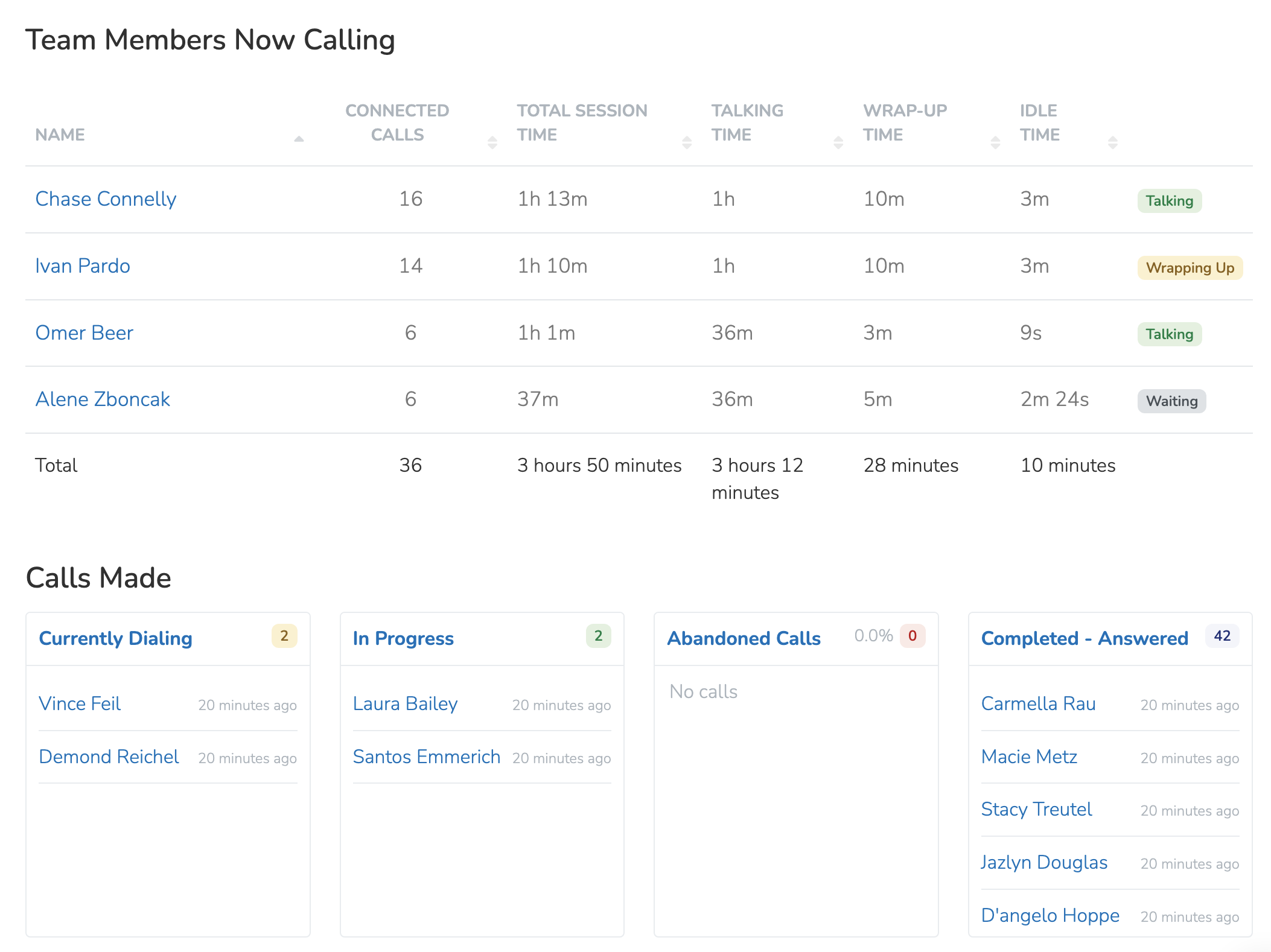
Follow the session in real time on the dashboard "Dialer Activity" tab. To find these calls later, use the filter 'Predictive Dialer Calls by Disposition'.
Answering machine automations
The "Automations" tab has two automations for calls that reach an answering machine. 'No Answer - Leave Voicemail' leaves an audio file that you upload. 'No Answer - Send Text Message' sends a text, with an optional delay.
Predictive dialer settings
Open the Details tab and expand 'Phonebank Settings'. 'Predictive Dialer Settings' is at the bottom. Lower the Acceptable Abandonment Rate to make your dialer less aggressive. How to handle abandoned calls sets what happens when a Person picks up and no Team Member is free. 'Hang Up' (the default) ends the call. 'Play Message' plays the recording from the 'No Answer - Leave Voicemail' automation.
Callbacks
When someone you called calls back the Chapter Phone Number, the chapter's incoming call routing settings handle the call, not the predictive dialer.
Updated 9 days ago