
Referral Tracking
Referrals show who brings new people and page submissions into your organization. A person gets credit when someone submits a page through a link with their referral code. Codes get onto links in these ways:
- Share-with-Friends Links: When someone completes a form and shares it, their referral code is included.
- Text Blasts and Email Blasts: A page merge tag in a blast or text template becomes a link with each recipient's own referral code. A forwarded link still credits the recipient.
- Page QR Codes: QR codes sent as text attachments include the referral code.
- The Solidarity app: A team member who adds a person through the "+" section gets the referral credit.
Viewing Referrals
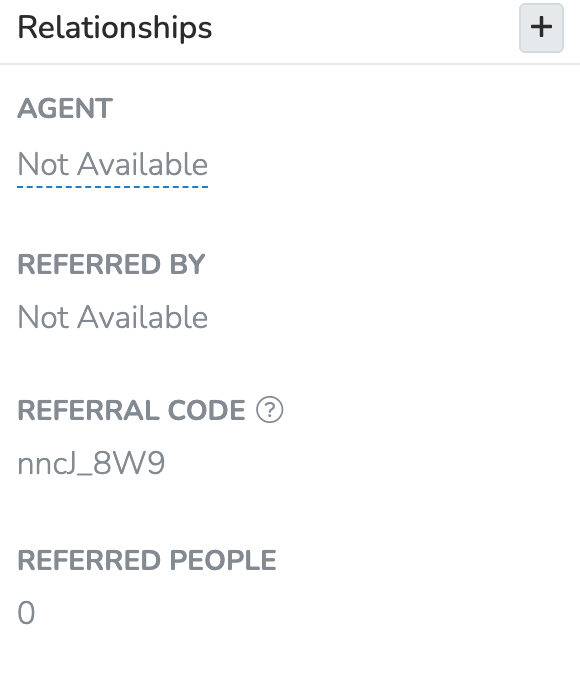
On a profile, the "Relationships" section shows the person's referral code, who referred them, and how many people they referred.
To see who drives the most referrals, open the 'Charts' layout of All People. Group by 'Most Referred New People' or 'Most Referred Page Submissions'. Filters such as 'Initially Referred By', 'Total People Referred', and 'Referred Page Submission Count' also find key referrers. Each filter looks at one step only, not at a full referral chain.
Referrals also appear in the activity timeline. Click "see who" to view the individual referrals.
Email Notifications
Referrers get email notifications about referral activity. A team member who recently texted the referrer a page link can also get one. People turn off referral emails with the links at the bottom of each email. There is no profile setting for referral emails.
To turn off all referral emails, open your root organization in Settings > Chapter Structure. Under "Referral Notifications", clear "Enable referral email notifications". Click "Save Organization Details".
Updated 25 days ago