
Text Keywords
Text Keywords are words that your supporters can text to your Chapter Phone Numbers in order to be immediately added to your list. By default, anyone can text JOIN to your numbers and have a Person record created for them automatically. You can configure a text keyword response to be sent in reply to all valid messages.
To add a keyword, go to Settings > Text Keywords and click 'New text keyword'.
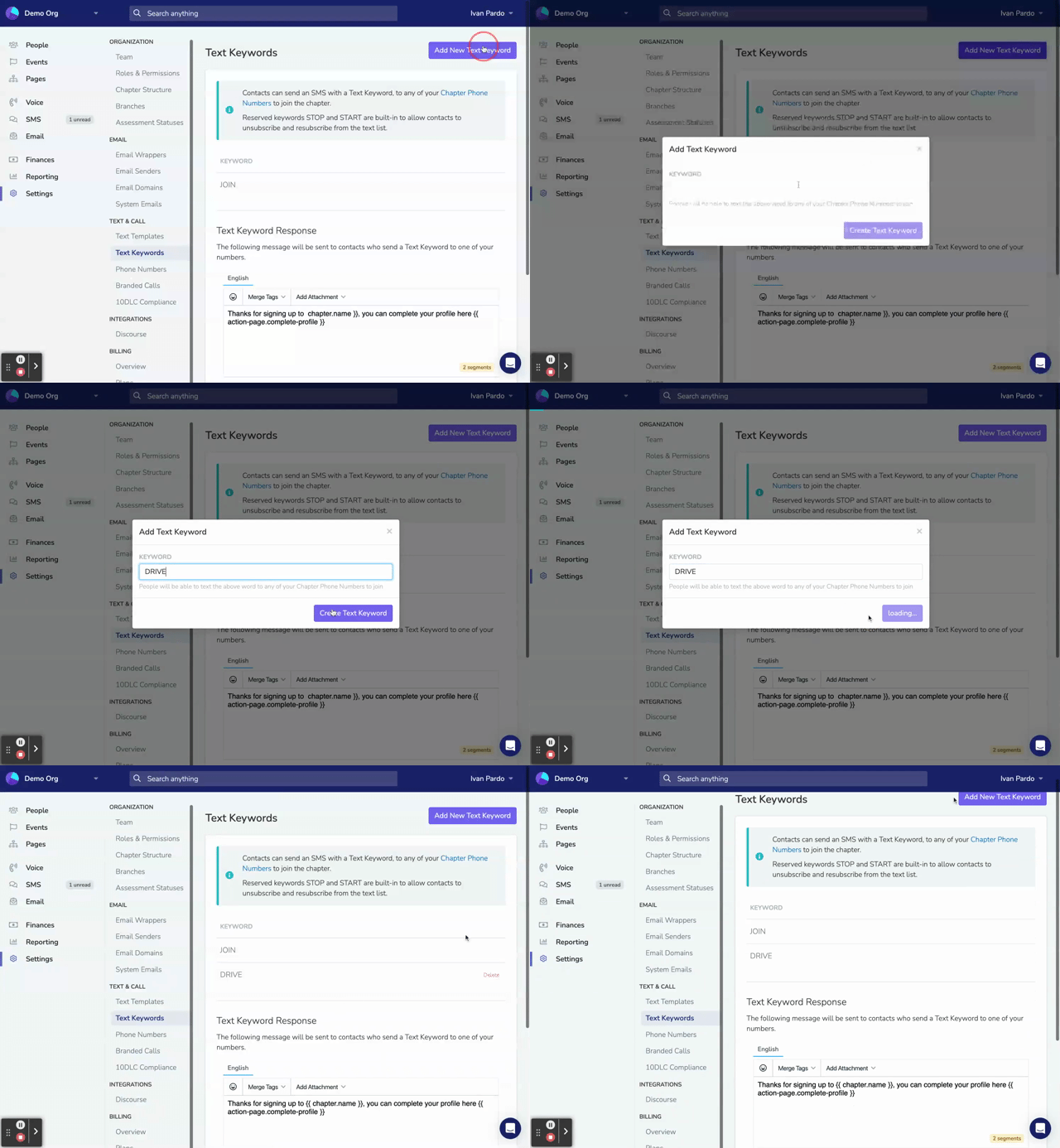
Text Keyword Response
When someone texts a valid keyword to one of your Chapter Phone Numbers, they receive an automatic reply. Each chapter has its own response. New chapters start with the response Welcome to {{ chapter.name }}!.
To customize the response:
- Go to Settings → Text Keywords
- If your organization has multiple chapters, select the chapter from the dropdown
- Edit the response message in the text editor
- Click Save Response
It's a good idea to include a link to a Page where the supporter can add more information, like their name and email address. Use the Merge Tags dropdown in the text editor to add tags such as {{ chapter.name }}, {{ organization.name }}, {{ user.first-name }}, or a personalized page link such as {{ action-page.your-slug }}. For the chapter's phone number, type {{ chapter.phone_number }} by hand, with an underscore. The 'Merge Tags' menu has no item for this tag.
Text messages have up to 160 characters per segment, and longer messages may be split. Text your own keyword to check that the response looks correct.
Multi-Chapter Organizations
The same keyword, such as JOIN, works on every chapter's number. When someone texts a chapter's number, they receive that chapter's response and are added to that chapter. A person who already exists in your organization is also added to the chapter whose number they texted.
Updated 19 days ago