
Co-Hosting Events
Solidarity Tech supports two types of event co-hosting:
- Internal co-hosting lets chapters and sub-organizations within the same root organization share a single event. The event owner adds internal co-hosts from Event Settings, once the event has an Event Page.
- Cross-organization co-hosting lets separate organizations collaborate on a single event using an invite code. The primary host manages the event, and co-host organizations receive a mirrored copy that syncs RSVPs and attendance.
Regardless of co-hosting type, co-hosts can have their own Event Page on their website with their own branding (when the co-host has a separate website from the primary event). All co-hosts can use Host Tools for check-in and attendance when the primary host turns on Enable Host Tools.
Internal Co-Hosting
Internal co-hosting lets one chapter or sub-organization share its event with another in the same organization, so the event appears on both websites. Internal co-hosts share the same event directly (not a mirrored copy), and all RSVPs and attendance are shared.
Adding an Internal Co-Host
- Open your event in the dashboard
- Click Edit next to Event Settings
- Scroll to the Internal Co-Hosts section. It shows only after you create the event's Event Page.
- Select a chapter or sub-organization from the dropdown
- Click Add
If you also manage events for the target chapter or sub-org, the co-host is added immediately. If you don't, the invitation is sent as Pending and requires approval from a team member who does. When the co-host is added or approved, and it has a website separate from the primary event's website, a co-host Event Page is created there.
Page placement warning: If the event's existing page is already on the co-host's website, no additional co-host page is created, and you may see a warning that suggests you move the page to the host's own website.
Approval
Pending invitations appear as a yellow banner at the top of the Events page for team members who manage events in the invited scope. Each invitation has Approve / Decline buttons.
What Internal Co-Hosts Can and Cannot Do
The event appears in the co-host's dashboard with an "Internal Co-host" label.
Internal co-hosts CAN:
- View all RSVPs and attendance
- Mark attendance from the dashboard
- View the event schedule and session details
- Have their own Event Page on their website (if they have a separate website)
Internal co-hosts CANNOT:
- Edit event title, settings, or schedule
- Add or remove sessions
- Create or edit automations
- Clone the event
- Create outreach tasks (phonebanks/textbanks)
- Add or remove other co-hosts
Removing an Internal Co-Host
The event owner can remove an internal co-host from Event Settings at any time. A confirmation prompt appears before removal. Removing a co-host deletes their co-host Event Page.
Cross-Organization Co-Hosting
Cross-organization co-hosting lets two or more separate organizations collaborate on a single event, such as a coalition event or a joint action.
- The primary host creates the event, manages the schedule, and controls event details
- Co-host organizations receive a mirrored copy of the event in their dashboard
- Data flows both ways: RSVPs, RSVP confirmations, and attendance sync between all organizations. The event title and type, and session titles, times, and locations, sync from the primary host to mirrors only. Later edits to the primary Event Page do not reach the mirror page.
- People are shared: When someone RSVPs through a co-host's page, the RSVP reaches every other organization. A person new to an organization is created there with their contact details and communication permissions. An existing person keeps their own contact details and permissions.
Inviting a Co-Host (Primary Host)
- Open your event in the dashboard
- Click Edit next to Event Settings
- Find the Co-Host Invite Code field
The invite code is automatically generated when you create an event. Copy it and share it with the organization you want to invite.

Security: Invite codes are unique to each event. Click Regenerate at any time to create a new code and invalidate the previous one.
Approving Requests
When another organization submits a co-host request, a Co-Hosts tab appears on your event page. Click Approve to create their mirrored event, with all existing RSVPs and attendance, or Reject to deny the request.
Requesting to Co-Host
If another organization invites you to co-host their event:
- Go to Events → New event
- Click Request to co-host an existing event in the info box at the top
- Enter the invite code and click Validate Code
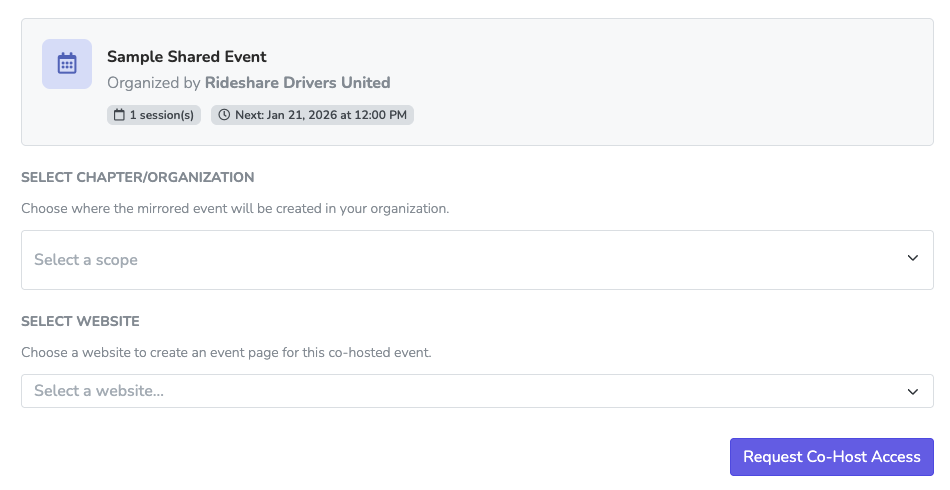
- Review the event details shown
- Select where to place the mirrored event:
- Select Chapter/Organization: Choose the scope where the event will live
- Select Website: Select a website to create an Event Page (required)
- Click Request Co-Host Access
The request requires approval from the primary host. Once approved, the mirror event appears in your dashboard. It gets an Event Page on your selected website when the primary event has an Event Page.
What Cross-Org Co-Hosts Can and Cannot Do
Co-hosts CAN:
- View all RSVPs and attendance from all participating organizations
- Mark attendance from their dashboard
- Create their own Event Page on their website
- Create outreach tasks (phonebanks/textbanks) targeting attendees
- Configure their own automation settings (confirmations, reminders)
- Manage their own Event Text Templates on the Automations tab. These are never shared with the primary host or other co-hosts.
- Use Host Tools for check-in and attendance when the primary host turned on Enable Host Tools
- Change three display settings per session with Edit Display: Show RSVP Buttons?, Show Session Title on Event Page, and Session Tags. These change only the co-host's mirror event.
Co-hosts CANNOT:
- Edit event title, times, or locations (read-only)
- Add or remove sessions from the event
- Add or remove other co-hosts, or delete the mirror event while the co-hosting is active. After the primary host removes the co-host, the mirror's Event Settings shows a Delete Event link.
- Modify the primary host's automations
- Regenerate Host Tools links or open the self check-in QR code
Event Pages
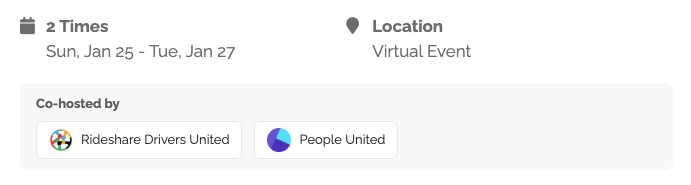
Event Pages display a "Co-hosted by" section showing all participating organizations with their logos.
Automations and Reminders
Each co-host configures its own automation settings. Synced RSVPs and attendance do not trigger automations in the receiving organization. An Event Follow-up Email or Event Follow-up Text set to Only Attendees is the exception.
Co-Host Analytics
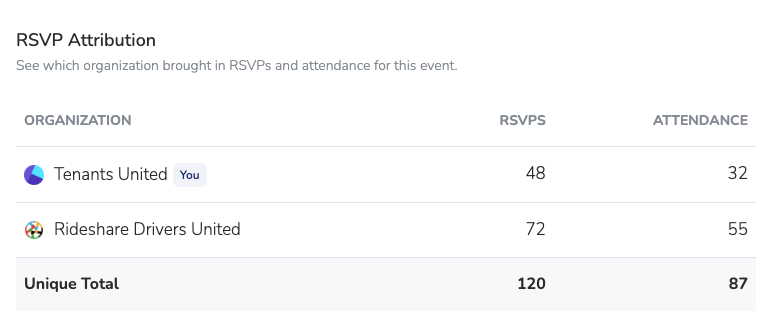
The primary host sees an RSVP Attribution section at the bottom of the Co-Hosts tab. Co-hosts see a Co-Host Analytics tab on the mirrored event. Both show the RSVP and attendance counts of each participating organization.
Removing Co-Hosts
Only the primary host can remove co-hosts, on the Co-Hosts tab. Co-host organizations cannot leave the relationship themselves. After removal, the co-host keeps its mirror event, the sync stops, and that organization cannot request the same event again.
Updated 11 days ago