
Block List
The Block List feature allows you to prevent specific People from submitting forms while making it appear their submissions were successful. Blocking a person also turns off all of their communication permissions.
Adding Users to Block List
- Go to Settings > Chapter Structure.
- Assuming you have permission to manage the block list, choose the Root Organization
- Scroll down the "Block List" section
- Use the autocomplete field to search for users by:
- Name
- Phone number
- Click the person in the search results.
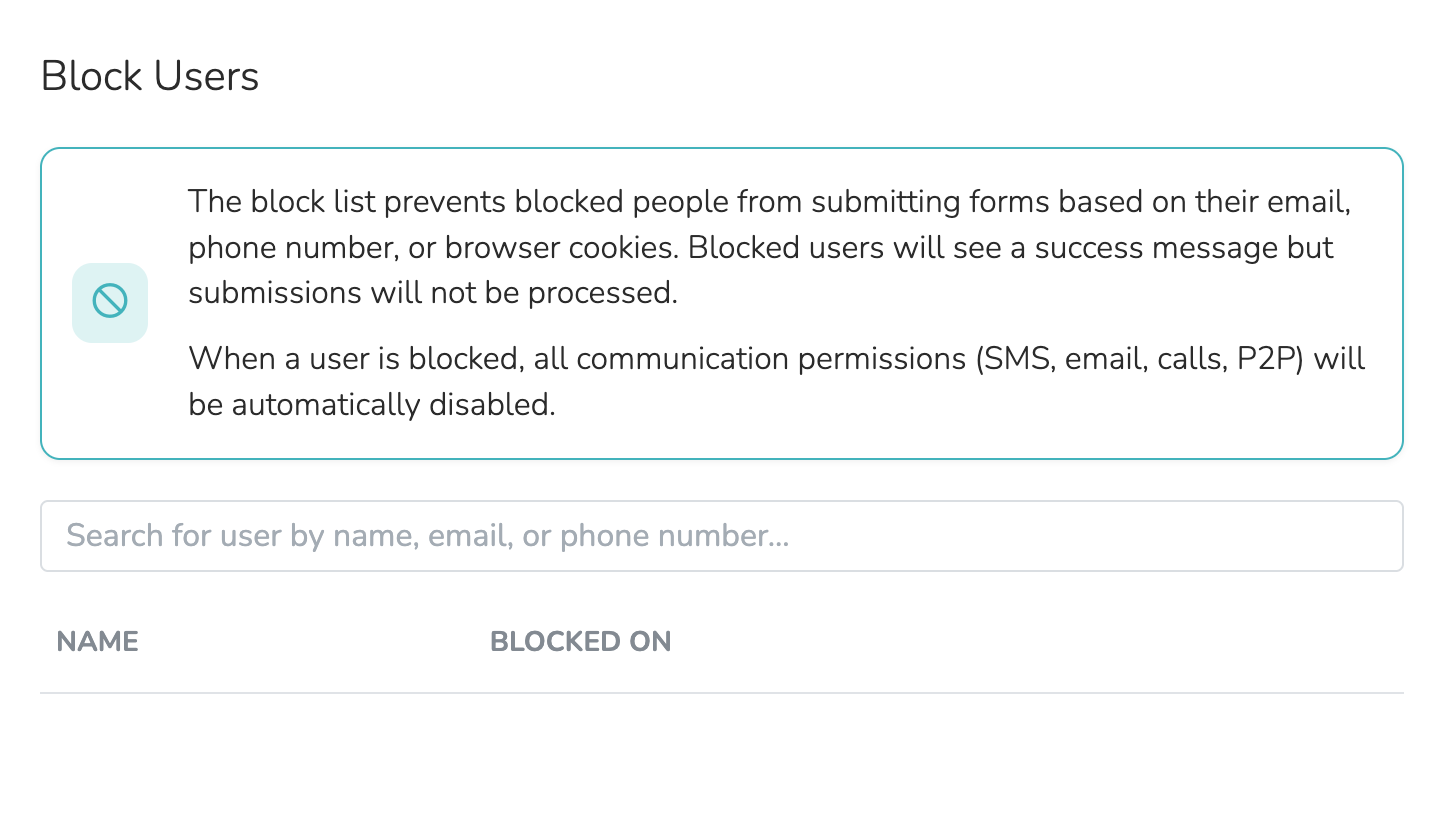
How Blocking Works
When a blocked user attempts to submit any form:
- They will be redirected to the standard "thanks" page
- Their submission will not be processed
- No data will be saved
- No follow-up actions will occur
The user receives no indication they are blocked - the form appears to submit successfully.
Managing Blocked Users
From the Block List section you can:
- View all currently blocked users
- To remove a person from the block list, click 'Delete' in the person's row. Then confirm the removal.
Note: Blocking is organization-wide - blocked users cannot submit any forms across your organization's sites.
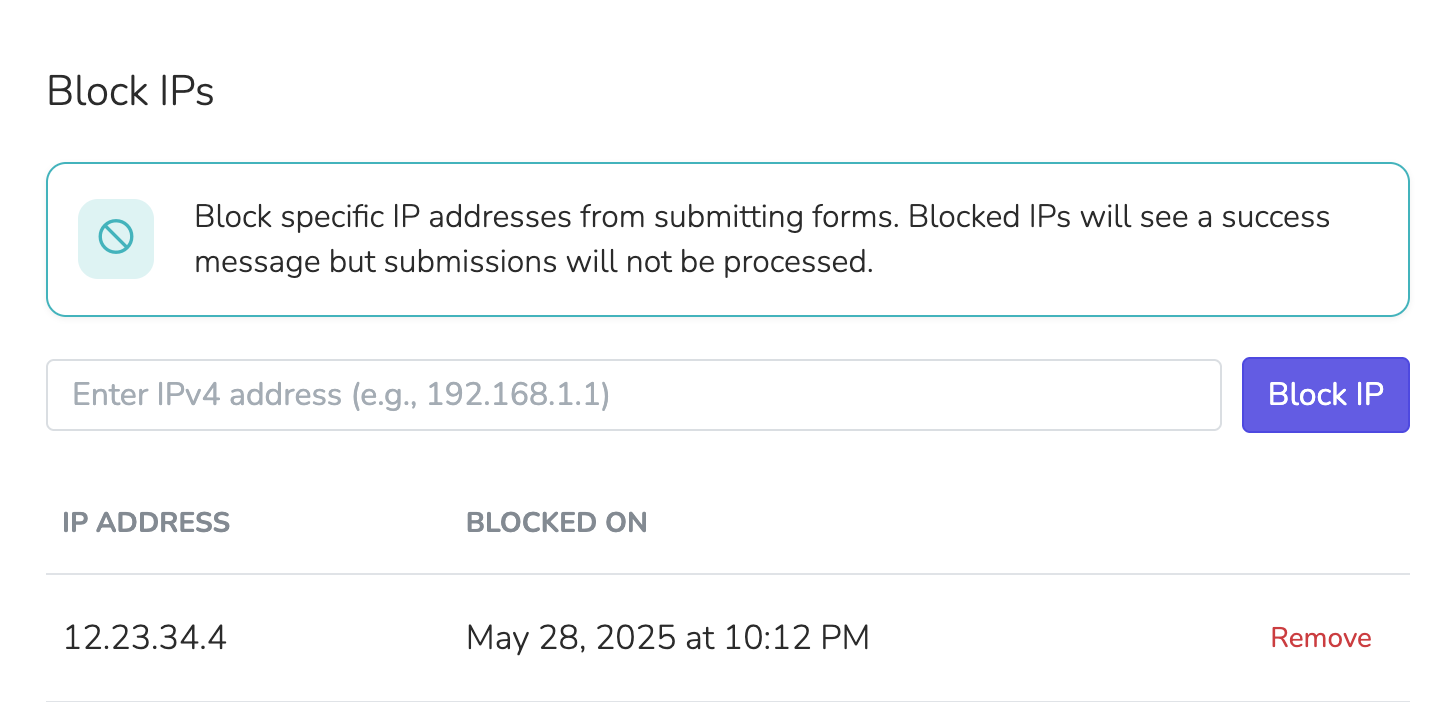
Block By IP
On the same page, 'Block IPs' blocks form submissions from an IP address. Enter an IPv4 address and click 'Block IP'. A submission from that exact address shows a success message but is not processed. To unblock an address, click 'Remove' in its row.
Updated 2 days ago