
Text Blasts
Text Blasts allow you to send broadcast text messages to all People on your list for whom you have SMS permission, in their preferred language. Texts can include Merge tags for personalized content, and can be sent immediately or scheduled for a future time.
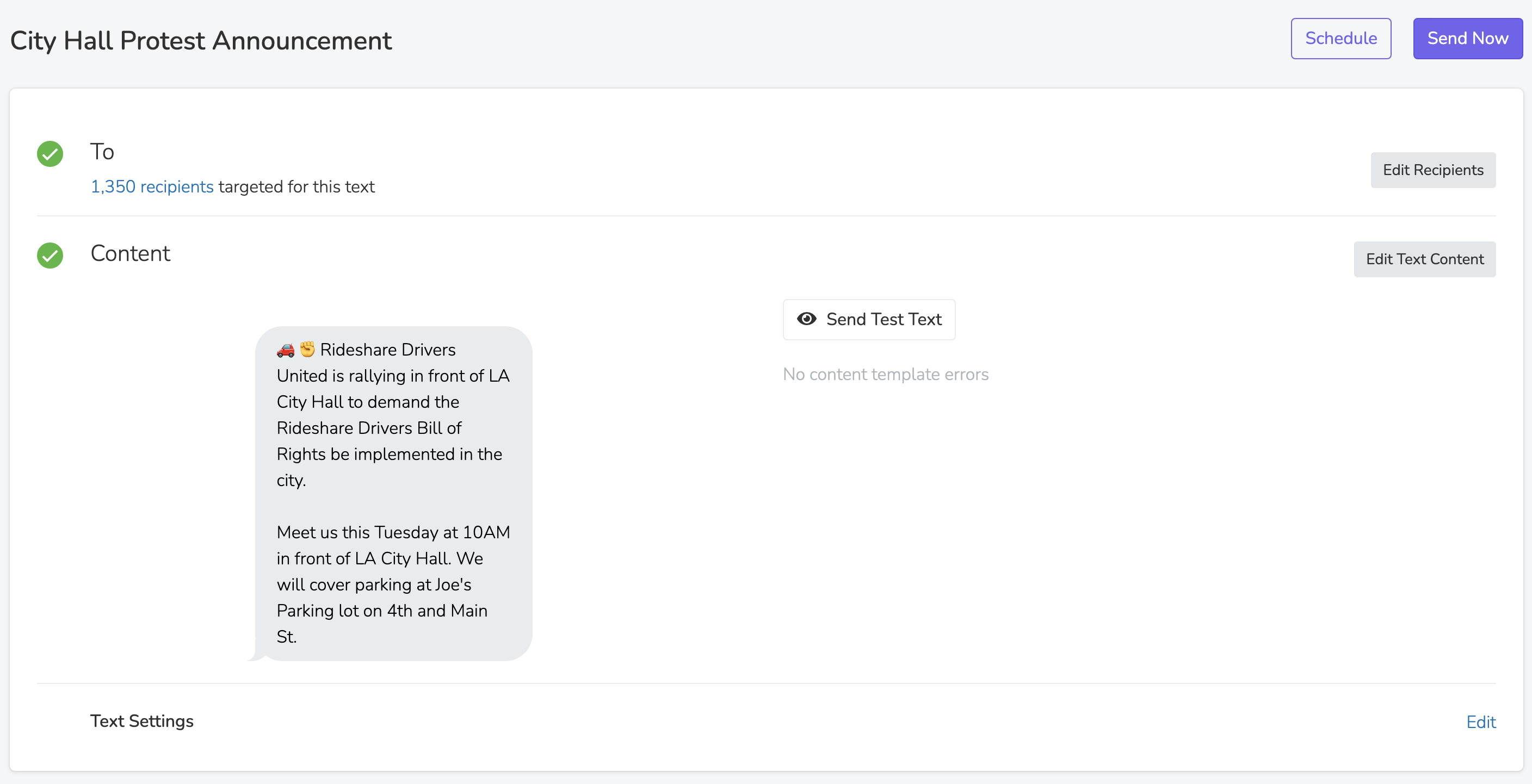
To
Edit the recipients section to create a filter targeting all people who will receive the text message. Only People for whom you have SMS permission will be eligible, so there's no need to add additional targeting parameters for that. Unlike email blasts, text blasts have no 'Limit Sends' setting to cap the number of recipients. To text part of an audience, build a narrower filter for each part.
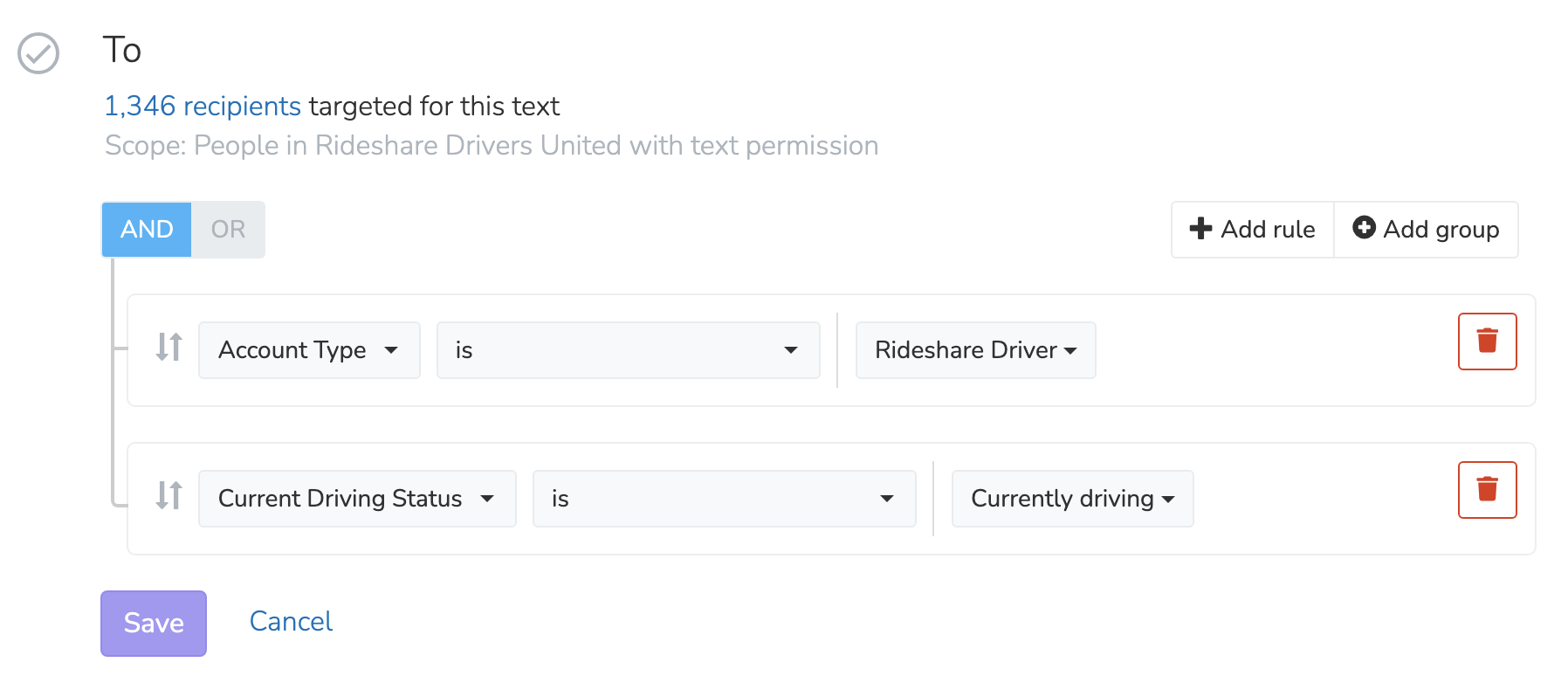
Once you've set your filter, click the targeted count link to preview all People.
Content
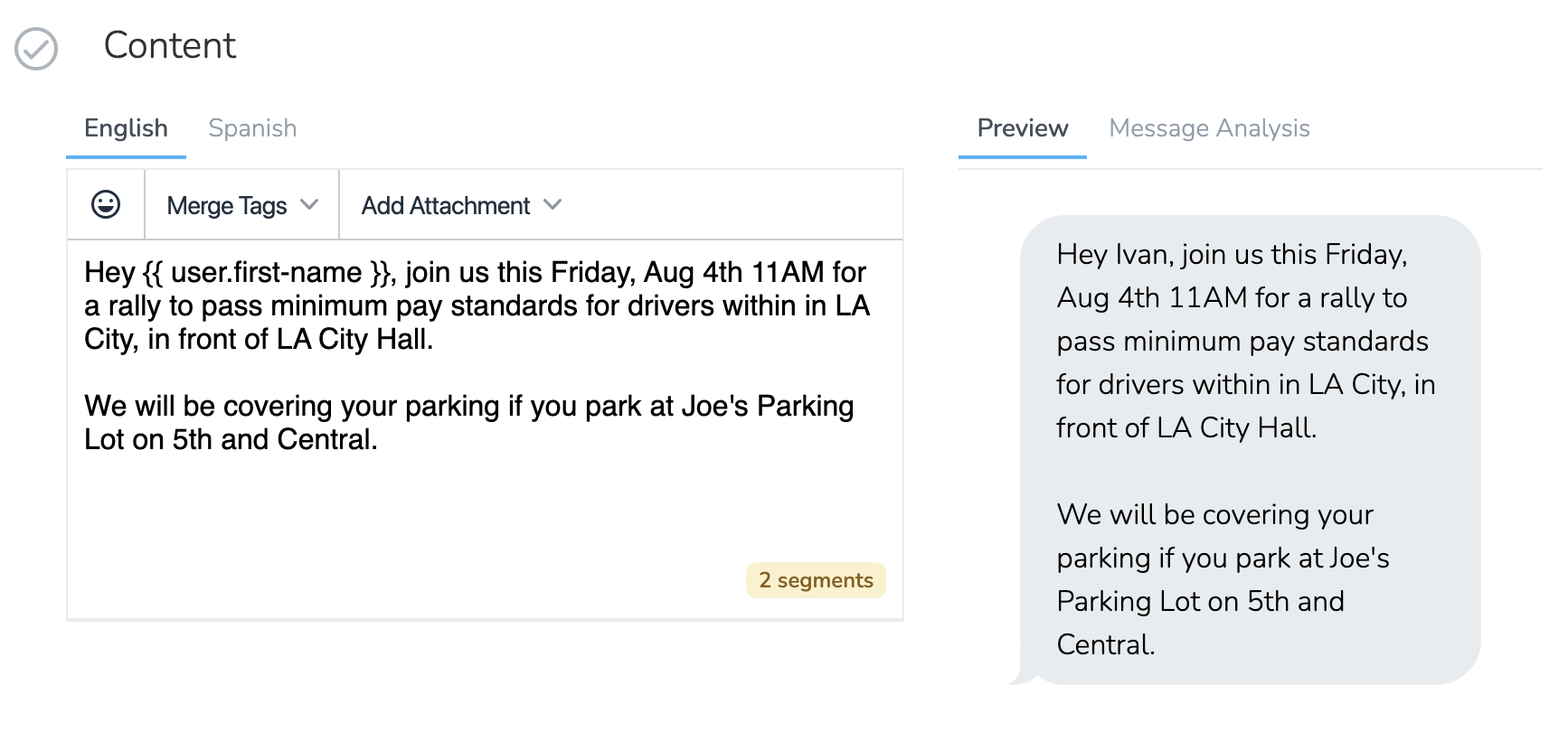
Edit the text content to craft the message template that will be sent to all targeted People. Here you can draft your text in all supported languages, and use merge tags to create personalized messages. Use the message preview in the right panel to see an example of the final text message.
Hover over the segments badge in the bottom right of the editor to see the 'Cost per message'. When the message has an attachment, the badge shows the MMS price.
Understanding Segments and Cost
A single SMS message can contain up to 160 characters using standard characters (GSM-7 encoding). If your message exceeds 160 characters, it is split into multiple segments of 153 characters each (7 characters per segment are used for reassembly headers). Each segment is billed separately.
If your message contains emoji, non-Latin characters, or certain special characters, the encoding switches to UCS-2, which reduces the limit to 70 characters per segment (67 for multi-segment messages). This means a short message with a single emoji could cost twice as much as the same message without it. A message with an attachment bills as one MMS, whatever its length. A text only message over 10 segments can go out as MMS but still bills per SMS segment.
The segment counter in the editor updates in real time as you type, so you can optimize your message length before sending.
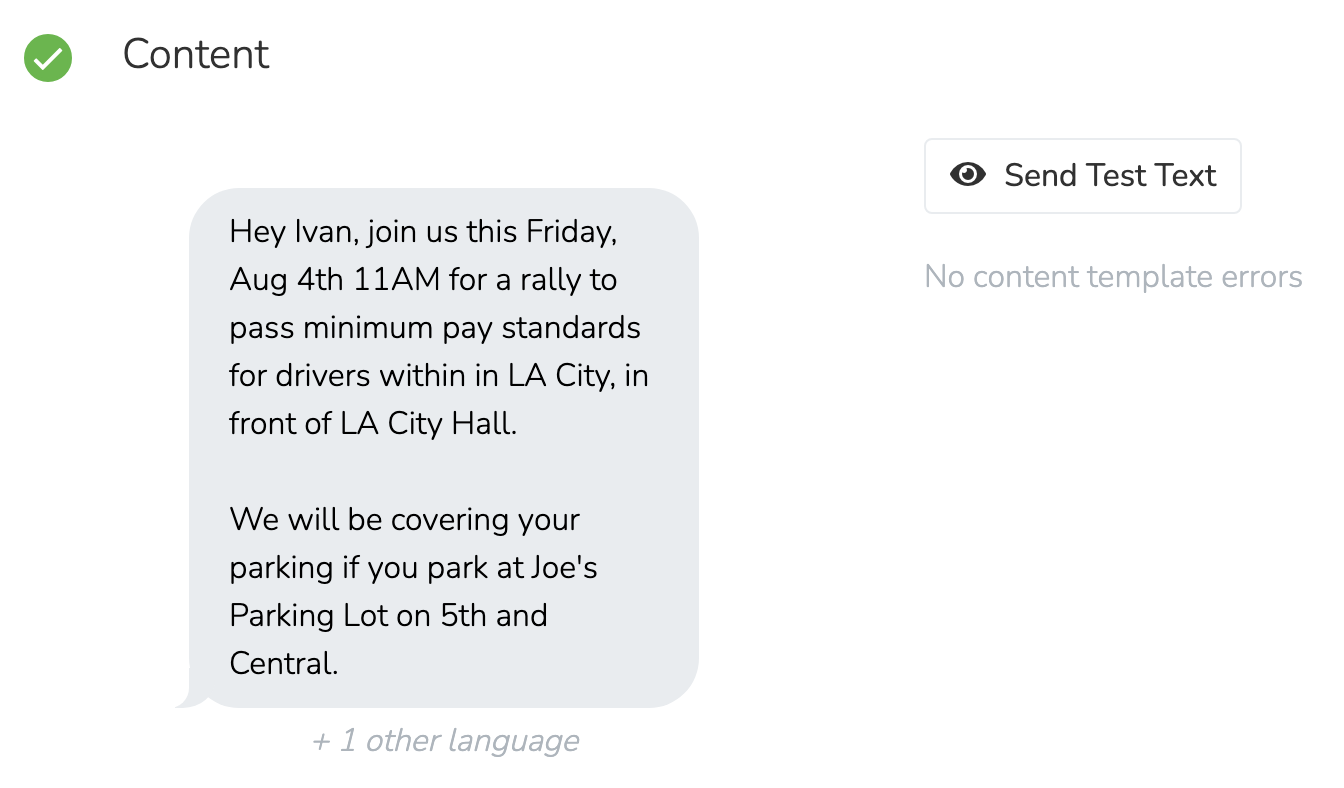
Once the message content is saved, click 'Send Test Text' to send a test to a phone number in your organization's home countries.
A/B Testing
A/B testing sends different versions of your message to a test group of recipients. The winning version then goes to the rest.
Note: A/B testing for text blasts is available on the Standard, Professional, and Enterprise plans. Link tracking must be enabled on the blast, and every variation must contain at least one link or page merge tag, since click rate is the metric used to select the winner.
To add a version, click Edit Text Content in the Content section, then click Add Variation. Write it yourself, or click Generate AI draft. Check the merge tags and links in each AI draft before you send. In Settings, set the Test Group Size and how the winner is picked. The system can pick it automatically, or you can pick it yourself with 'Let me choose'.
Note: Automatic winner selection picks and sends the winner only inside your organization's texting hours. 'Select as Winner' starts the send at once, at any time of day, but the texting hours rules below still apply to each recipient.
Settings
Supported Languages: Add additional languages that you want your Text Blast to support. If a Person has their preferred language set to a language that your text blast supports, they will have their message delivered in that language. Otherwise, they receive the message in the default language of the blast's scope. When you save a new language, the dashboard translates the text for you. You can edit the translated text.
Scope: The scope determines the available universe.
Track Links: By default, all links will be shortened to use our URL shortener at the domain sldr.it. This keeps the link shorter and lets you track when a link is clicked. Link tracking is required when using A/B testing.
Clone text blast: To reuse a similar text template, click 'Clone Text Blast' at the bottom of the blast settings.
Texting Hours
Text Blasts respect your organization's texting hours, configured at Settings > Chapter Structure on your root organization. A text blast checks only the end of the texting hours window, in each recipient's timezone. Recipients past the end time are skipped (not queued or retried), and messages still queued at the end time expire. After sending, a notification can show how many messages were skipped due to texting hours.
For example, a text blast sent at 7:00 PM Eastern time will still deliver to a recipient in California (where it's 4:00 PM) but will skip a recipient in New York if the texting hours window has closed.
To override this behavior, check 'Continue delivering messages after texting hours end at [time]' in the 'Send Now' or 'Schedule' window. The checkbox shows only when your organization has texting hours set. When you check it, messages go to every recipient, whatever the local time.
Sending
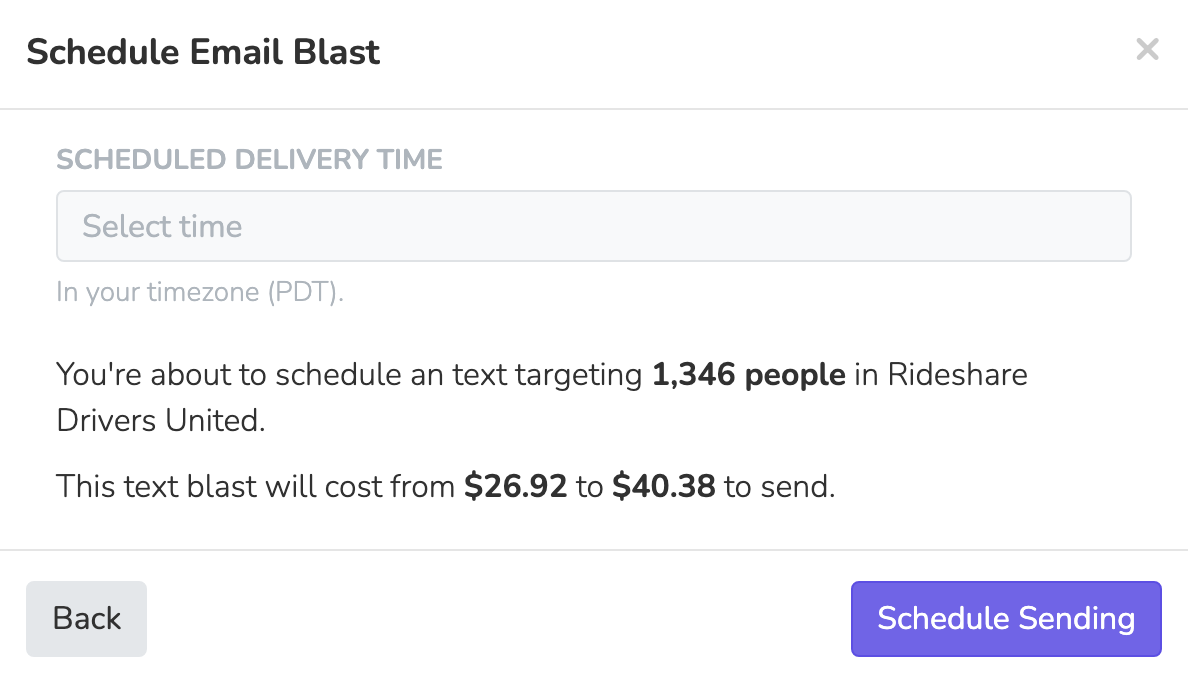
When you're ready to send your Text Blast, you can either schedule the sending to begin at a pre-set time, or immediately begin sending the Text Blast. When you go to send the Text Blast, you will be given an estimate as to how much it will cost to send all messages. The bill counts every SMS message the blast creates, whatever its delivery status. The final cost can differ from the estimate, because merge tags can result in variable text lengths for each message. For example, if you're using someone's first name in the message, a longer name may force a text message to add an extra text segment.
Results
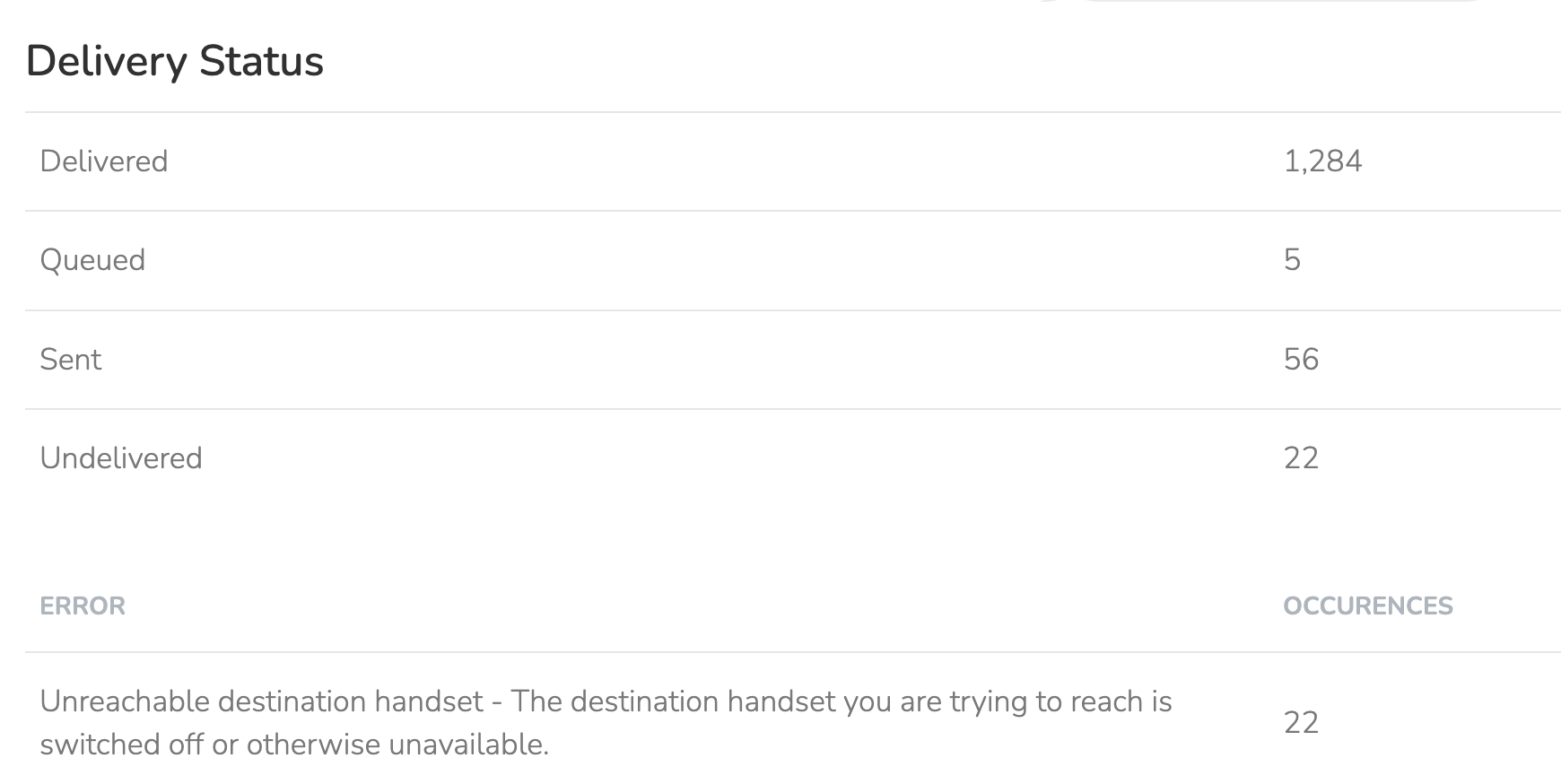
When a Text Blast is sent, you will immediately be taken to the results page where you can watch the text delivery happen in real-time. You can view the delivery status, alongside any delivery errors. A Sent status means the carrier accepted the message but did not report a final delivery confirmation.
If your blast used A/B testing, the results page shows the results of each variation. While the test runs, click Select as Winner next to a variation to send it to all remaining recipients.
The results activity tab lists the People who were sent the text message by status, such as Delivery Issue, Clicked, Took Action, and Opted Out.
Resending to Failed Recipients
To text the people whose message failed, create a new text blast. In its filter, use 'Text Message Blast Status' with the old blast and one status, such as Failed or Undelivered.
Sent Blasts List
The Sent Text Blasts tab on the Text Blasts page lists all blasts that have finished delivering. It shows whether each blast was sent as SMS or MMS.
Updated 9 days ago