
Payments
The "Payments" section of the Finances tab contains a list of the one time and recurring Stripe payments of your organization or chapter. To see external payments, pick 'External Donations' in the account menu. Switching the selected Stripe account from the dropdown refreshes the data table with only payments associated with that Stripe account. Use the date range button on the page to show only payments created in a chosen period. The export button downloads a CSV of successful payments, and it uses the date range you chose.
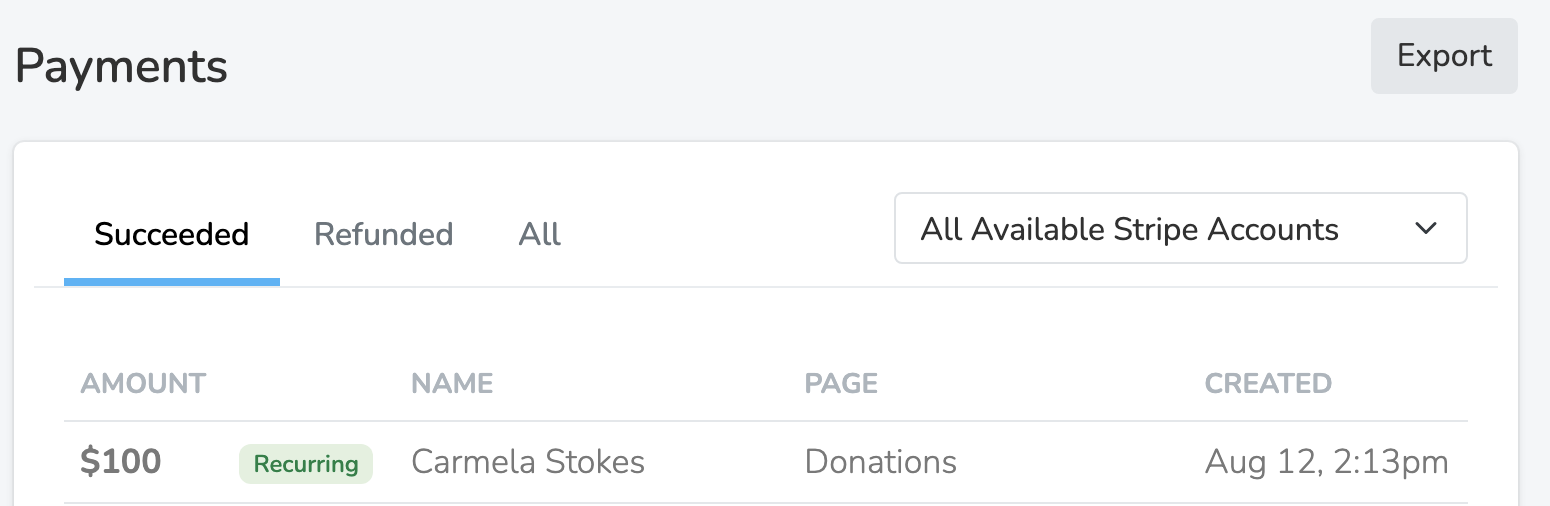
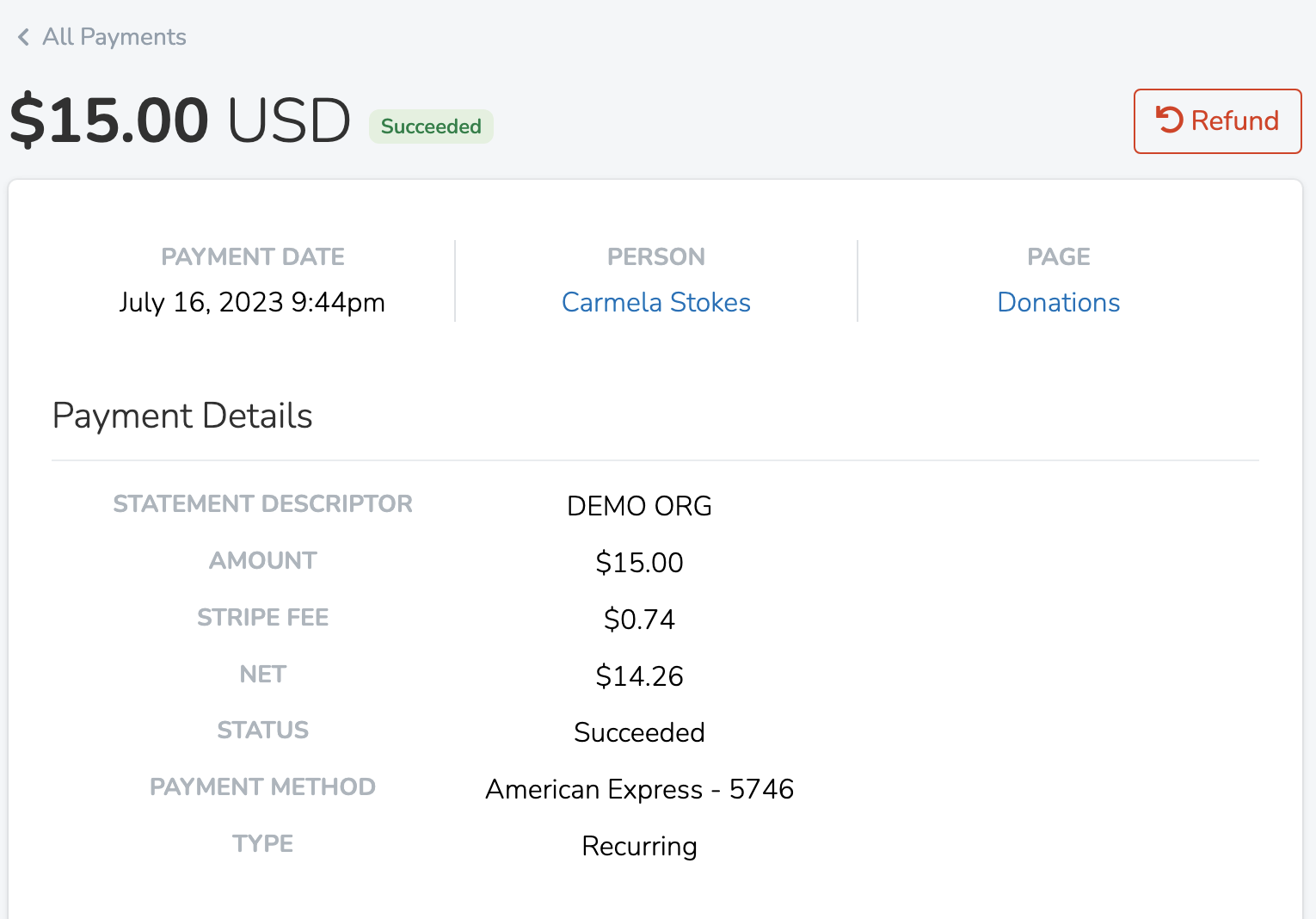
You can click on a single payment in order to view more details on it. Here you'll see all relevant data on that payment and be able to offer a full or partial refund to the Person who made the donation. To refund, open the payment, pick 'Refund Payment' in the '...' menu, enter the 'Refund Amount', and pick a 'Reason'.
For ticket orders placed through a ticketed event page, the payment detail page shows an itemized breakdown of the purchase — the number of tickets and the tier name for each (for example, "2 × General Admission"). If a ticket tier was deleted after the sale, it will appear as a generic label. The total charged reflects all tiers combined.
At the bottom of a Stripe payment, the 'Receipt History' section lists each receipt sent. Click 'View Receipt' to see the receipt. Click 'Send Receipt' to email it to any address you enter.
Moving a Payment to Another User
If a payment was recorded under the wrong person, you can transfer it to the correct user by clicking the ... (ellipsis) button in the top right corner and selecting Move to Another User. This is useful when a donation was accidentally linked to the wrong account. The payment and its associated activities will be moved to the selected person.
Updated 8 days ago