
Plans & Billing
Solidarity Tech pricing combines a feature plan and a contact tier, plus usage fees for texts, calls, and emails. Only the account owner can change the feature plan or contact tier, from the dashboard. An organization on a custom plan sees a message to contact support instead. Contacts over your tier limit bill each month as "Additional Contacts Overage", at $0.03 per contact on Essentials, $0.06 on Standard, and $0.10 on Professional. Compare this with the next contact tier's price on the pricing page.
Usage fees for texts, calls, and emails do not change with the contact tier. Essentials and Standard have the same usage rates, and Professional has lower rates. We use Twilio to provision phone numbers, send text messages, and make calls. So as not to discourage organizations from sending the texts and messages they need to send their supporters, we aim to keep the text and call rates as cheap as possible.
The pricing for all feature plan and contact sizes, along with SMS, voice, and email pricing, can be seen on our pricing page. Team Members who have access to manage billing at the root organization can view the billing plan from the "Plans" section within the Settings tab.
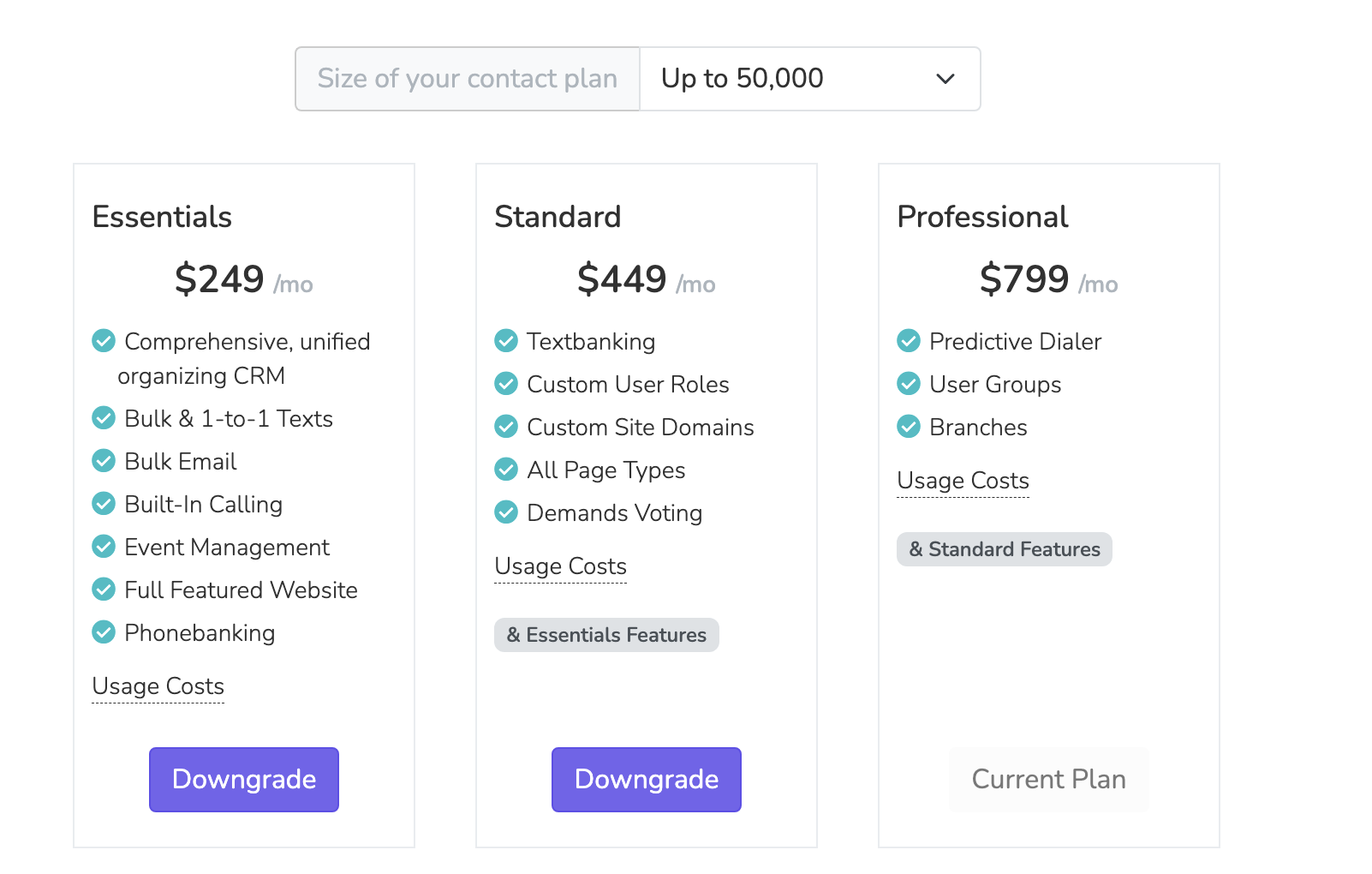
All upgrades will be pro-rated for the month, so you will be billed upfront for the upgrade for the remainder of the billing cycle. Usage rates for SMS, voice, and email will be charged at the rate of the upgraded plan, even if the costs were incurred before the upgrade.
Updating billing method
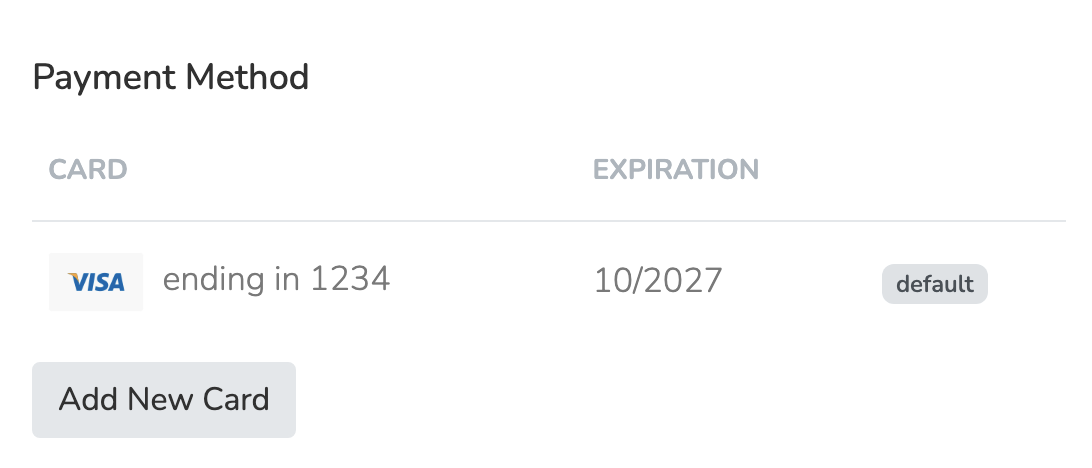
Team Members with access to manage billing can change the default payment method from the "Overview" section of the Settings tab. Solidarity Tech supports two payment methods: Credit & Debit Cards and ACH Bank Accounts.
Credit & Debit Cards
To add a new card:
- Navigate to Settings > Billing > Overview
- Click Add New Card
- Enter your card details and click Add Card
- "Make Default Payment Method" is checked by default.
You can add multiple cards and switch between them at any time. To change your default card, click Make Default next to any saved card. Cards cannot be deleted while they are set as the default payment method.
ACH Bank Accounts
ACH (Automated Clearing House) payments allow you to pay invoices directly from your bank account.
Adding a Bank Account
- Navigate to Settings > Billing > Overview
- Scroll down to the ACH Bank Accounts section
- Click Add Bank Account
- Enter the following information:
- Account Holder Name - The name on the bank account
- Routing Number - Your bank's 9-digit routing number
- Account Number - Your bank account number
- Account Holder Type - Select "Individual" for personal accounts or "Company" for business accounts
- Click Add Bank Account
Verifying Your Bank Account
For security, new bank accounts must be verified before they can be used for payments. Stripe uses a micro-deposit verification process:
- After adding your bank account, Stripe will send two small deposits (each under $1.00) to your account within 1-2 business days
- Check your bank statement or online banking to see the exact amounts of these deposits
- Return to Settings > Billing > Overview
- Find your bank account (it will show "Pending Verification" status)
- Click Verify Now
- Enter the two deposit amounts in cents (for example, if you received $0.32 and $0.45, enter "32" and "45")
- "Make this my default payment method" is checked by default. Clear it to keep your current default.
- Click Verify Account
Once verified, your bank account will show a green "Verified" badge and can be used for payments.
Setting ACH as Default
After verification, you can set your bank account as the default payment method:
- Click Make Default next to your verified bank account
- All future invoices will be charged to this bank account
Note: An invoice paid by bank account shows "Paid" once Stripe accepts the payment, before the transfer completes.
Managing Bank Accounts
- You can add multiple bank accounts to your organization
- Only verified bank accounts can be set as the default payment method
- Bank accounts cannot be deleted while they are set as the default payment method
- To delete a default bank account, first set a different payment method (card or another bank account) as the default
Invoices and Receipts
Past invoices are in the "Invoices" table on Settings > Billing > Overview, and each invoice page has a "Download as PDF" button. The billing email gets receipts with the invoice PDF.
Admins at the root organization set the billing email. Open the root organization in Settings > Chapter Structure. Fill in "Billing Email". Click Save Organization Details.
Unpaid Invoices
With a valid default payment method, "Pay Balance Now" on Settings > Billing > Overview pays unpaid invoices. Three days after the period of an unpaid root organization invoice ends, every dashboard page goes there until it is paid.
Predictive Dialer Usage Fees
The predictive dialer is on the Professional plan. When using it, two separate usage line items may appear on your invoice depending on how agents connect:
- Predictive Dialer Caller Minutes: billed when agents connect through their phone. These minutes are billed at the standard voice rate.
- Predictive Dialer Browser Minutes — billed when agents connect through their browser. Browser-leg minutes are billed at a lower rate than standard caller minutes.
Both line items cover the time an agent is connected to the dialer conference. Each dialer call to a contact also bills under "Call Minutes".
Sub-Organization Billing
Organizations with sub-organizations can optionally allow their sub-organizations to manage their own billing and be charged directly for usage costs. This is useful for larger organizations where each sub-organization (such as regional chapters or locals) wants to pay for their own communication expenses.
How It Works
When sub-organization billing is enabled:
- The root organization continues to pay the monthly base subscription fee
- Sub-organizations pay for their own usage costs, for example:
- Text messages (SMS segments)
- Photo messages (MMS)
- Call minutes
- Predictive Dialer Caller Minutes
- Predictive Dialer Browser Minutes
- The "Sub-org 10DLC brand fee" for their own approved brand
- Email sends
Sub-organizations without a valid payment method will have their usage costs included in the root organization's invoice as normal.
Enabling Sub-Organization Billing
Root organization team members with the "Manage Chapter Structure" permission can enable this feature:
- Navigate to Settings > Chapter Structure
- Select your root organization
- Check the box labeled "Allow sub-organizations to manage their own billing"
- Click Save Organization Details
Once enabled, sub-organizations can add their own payment methods and will be charged separately for usage.
Setting Up Billing for a Sub-Organization
Team members with billing access at a sub-organization can add payment methods:
- Log into the dashboard while scoped to the sub-organization
- Navigate to Settings > Billing > Overview
- Add a credit or debit card, or a bank account. A new bank account needs verification before use, with the steps in "Verifying Your Bank Account" above.
- Set a billing email address where receipts and payment notifications will be sent
Billing Email
Each sub-organization can set a specific email address for billing communications:
- Receipts for successful payments
- Notifications if a payment fails
- Reminders about unpaid invoices
The root organization's account owner also gets copies of failure emails and reminders.
How Invoicing Works
Monthly Invoices
At the start of each billing cycle:
- Sub-organizations with valid payment methods receive usage-only invoices for the previous period
- The root organization receives an invoice for the base subscription fee plus usage for any chapters not covered by sub-organization billing
Invoice titles follow this format:
- Monthly Usage Invoice - [Sub-Org Name] - January 2026
High-Usage Invoices
If a sub-organization's usage exceeds $500 before the regular billing date, an interim invoice is automatically generated and charged. This prevents large bills from accumulating.
Interim invoice titles include the date range:
- Usage Invoice - [Sub-Org Name] - Jan 15-25, 2026
Minimum Invoice Threshold
Monthly sub-organization usage under $0.50 is not invoiced. That usage does not carry to the next month.
Payment Failures
If a sub-organization's payment fails:
- First attempt fails: An email goes to the sub-organization's billing email and the root organization's account owner
- Retry attempts: The system automatically retries on days 1, 3, 6, and 9
- Continued failure: Reminder emails go out 4 and 7 days after the failed charge. A dashboard banner shows from the first failure.
Important: Unlike root organization billing, sub-organization payment failures do not result in deletion of phone numbers. Root organization team members keep access, and admins at the root organization can pay the invoice. Seven days after an unpaid invoice is created, dashboard access pauses only for team members in that sub-organization and its chapters, until it is paid.
Viewing Sub-Organization Invoices
- Sub-organization admins can view only their own organization's invoices and payment history
- Root organization admins can view all invoices across all sub-organizations from the main billing overview
Moving Chapters Between Sub-Organizations
If a chapter moves between sub-organizations mid-billing-cycle, its usage will be billed to whichever sub-organization it belongs to at the time of invoice generation.
Closing account
Only the current account owner can cancel the account. After you cancel, the service continues until the next billing date, when the final invoice runs.
Cancelling your subscription will delete all data - not limited to your websites and pages, your phone numbers and communication history, and your People records.
Until the final invoice runs, the account owner can undo the cancellation. The "Account" page shows the cancellation date. Deleted data cannot be recovered.
Updated 1 day ago