Field Surveys
A Field Survey is a regular Page Form with one setting enabled. Instead of a contact filling it out themselves on your website, a Team Member fills it out on behalf of a contact. The submission updates the contact's Person record exactly as if they had submitted it directly, but it's attributed to the right person no matter who is doing the typing.
This makes Field Surveys one of the most reused features in Solidarity Tech. The same Field Survey can be filled out from a contact's profile in the dashboard, during a phonebank or textbank call, while canvassing at the door, or anywhere a Team Member is talking to a supporter on the mobile app.
A Field Survey is just a form. Any Page Form can become a Field Survey by enabling one toggle. Everything you can build into a form (user fields, custom properties, conditional logic, multipage subforms, demand votes) works in a Field Survey. See Forms for the full field reference.
Common use cases
- Branching scripts: Build dynamic, conditional scripts that guide a Team Member through different paths based on a contact's responses.
- Data cleanup: Let Team Members update contact information (email, phone, address, etc.) during a conversation.
- On-behalf-of forms: Complete petitions, pledges, surveys, RSVPs, or sign-up forms for a supporter while you're on the phone or at their door.
Enabling Field Survey mode
- Go to Pages in your dashboard and create or open a Page (a Basic Form works well for most use cases).
- In the Form tab, build out your form using any combination of form fields: user fields, custom properties, dropdowns, radio buttons, conditional fields, and more.
- Scroll to the Form Settings section at the bottom of the Form tab and enable "Show as Field Survey."

Once enabled, the form is available to Team Members everywhere Field Surveys appear (see below). The public-facing version of the page still works normally for self-submission.
No special permissions required. Any Team Member can fill out a Field Survey from the surfaces available to them. There is no additional admin access needed.
Where you can fill out a Field Survey
A single Field Survey is reachable from several places, so you build it once and use it everywhere.
From a contact's profile
Open any Person's profile in the dashboard. In the sidebar, a Field Surveys box lists every enabled Field Survey. Click Fill Out to open the survey for that contact in a modal and submit it on their behalf.
During a phonebank or textbank
Team Members running a phonebank or textbank can tap the Field Surveys section on the call or conversation screen, pick the appropriate survey, and fill it out while talking to the contact.
You can control which Field Surveys are visible for a given task. In the phonebank or textbank's Settings tab, use "Limit Visible Field Surveys for Team Members" so callers only see the surveys relevant to that campaign. By default, all Field Surveys are shown.
While canvassing
A canvass uses a Field Survey as its door-knocking script. Attach a Field Survey to the canvass so canvassers have a structured form to follow at each door. If no Field Survey is attached, canvassers won't have a script, so create one as a form Page and enable "Show as Field Survey" first.
In the mobile app
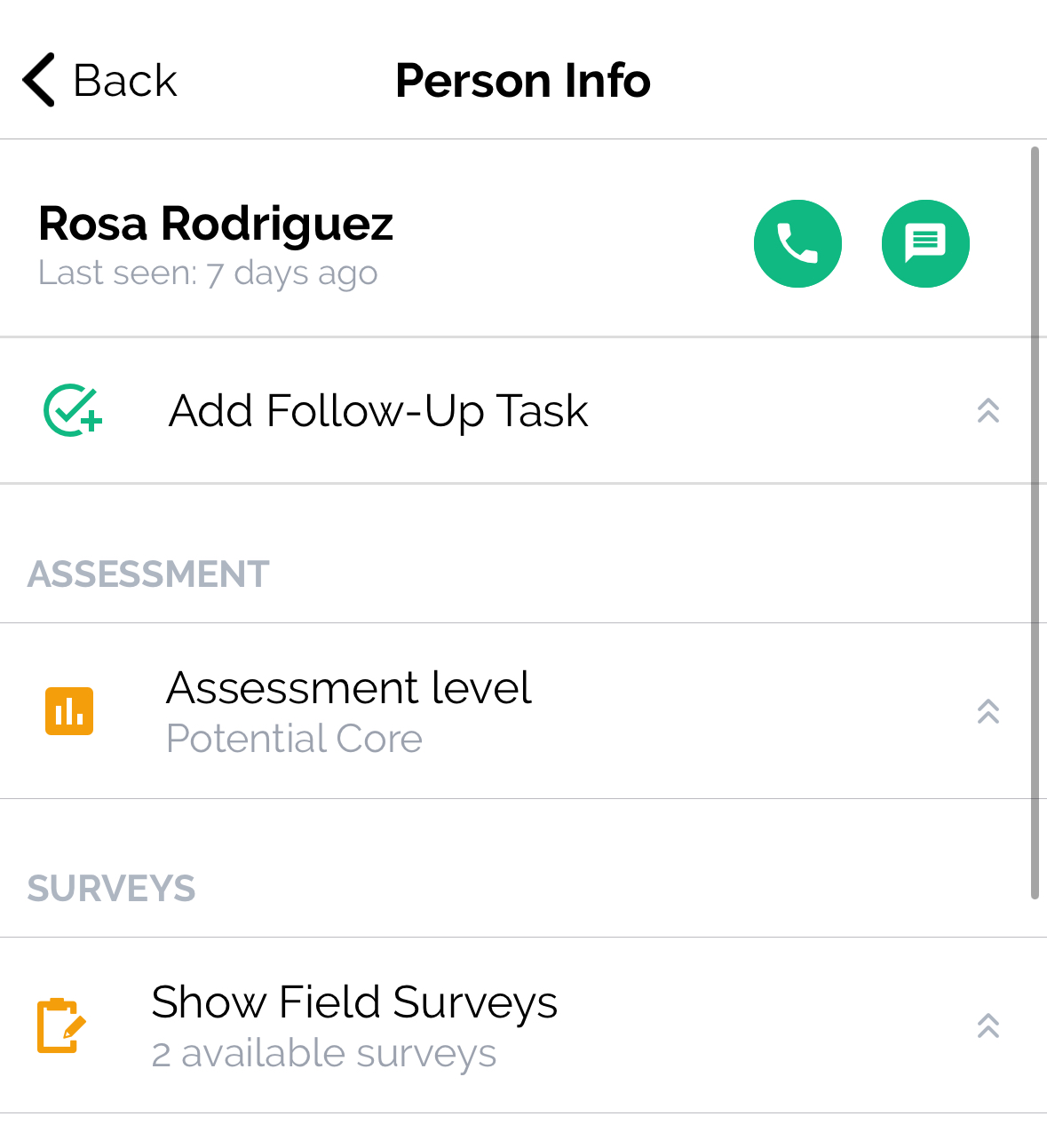
The mobile app is the primary surface for Team Members in the field. Field Surveys appear in the Workflows tab during phonebank and textbank calls, and on a contact's profile in the app, so organizers can collect or update data from anywhere.
Building branching scripts
Field Surveys are the primary way to build branching scripts (also known as dynamic or conditional scripts). Instead of a static script that everyone reads the same way, a branching script adapts in real time based on the contact's responses.
- Create a Page Form with the questions and talking points you want to follow.
- Use conditional visibility on form fields. Set fields to "Visible conditionally" so they only appear when a previous answer matches a specific value. For example:
- If the contact says "Yes" to attending an event, show follow-up questions about transportation needs.
- If the contact says "No," show a different set of fields with objection-handling prompts.
- Use Multipage Subforms to break your script into logical sections, so Team Members move through the conversation page by page.
- Use Custom HTML fields to insert talking points, instructions, or guidance between questions.
- Use Liquid template labels to personalize field labels based on earlier answers (e.g., "Tell me more about your experience at {{ employer }}").
- Enable "Show as Field Survey" in Form Settings.
Tip: On a phonebank, combine the static Phonebank Script (which appears at the top of the call screen) with a Field Survey for the interactive portion. Use the static script for the opening and closing, and the Field Survey for the dynamic, branching middle section.
Example: Event RSVP branching script
- Page 1: "Hi {{ user.first-name }}, this is {{ agent.first-name }}. Are you available for our event on Saturday?" → Radio button: Yes / No / Maybe
- Page 2 (if Yes): "Great! Do you need a ride?" → Follow-up logistics questions
- Page 2 (if No): "I understand. Would you be interested in hearing about future events?" → Re-engagement questions
- Page 2 (if Maybe): "What would help you decide?" → Objection-handling prompts
Updating contact information (data cleanup)
Field Surveys are also the recommended way to let Team Members update contact information during a conversation. When a Field Survey includes User Fields (such as Email, Phone Number, Full Name, Zip Code, or Full Address), submitting the form automatically updates those fields on the contact's Person record.
- Create a Page Form and add the User Fields you want Team Members to be able to update (e.g., Email, Phone Number, Full Address).
- Optionally add any Custom User Properties that you also want to update.
- Enable "Show as Field Survey" in Form Settings.
- During a call or visit, the Team Member opens Field Surveys, selects the data cleanup form, enters the corrected information, and submits. The contact's record is updated immediately.
Updated 2 days ago