
Automations
Automations Overview
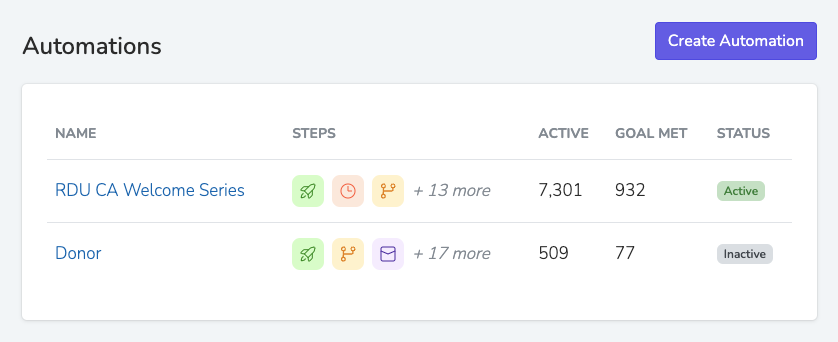
Solidarity Tech's Automations feature allows organizers to create dynamic, multi-step workflows that streamline supporter engagement. By automating repetitive processes, organizations can save time, nurture relationships effectively, and ensure consistent outreach across their entire community. Automations include actions, decisions, and delays that are triggered by supporter activities, ensuring every communication is timely, targeted, and impactful. Automations are on the Standard, Professional, and Enterprise plans.
Key Benefits
-
Efficiency & Scalability: Automate repetitive tasks like welcome emails, follow-ups, and reminders, freeing up organizers to focus on strategic work.
-
Personalization at Scale: Automations adapt based on each supporter's behavior. With multilingual support, communications are sent in supporters' preferred languages.
-
Multi-Channel Engagement: Engage supporters through email, SMS, and follow-up tasks - delivering the right message at the right time.
-
Analytics & A/B Testing: Track performance at every step. See how many people engage, progress through the workflow, and achieve your goal. Test message variations to optimize results.
Triggers
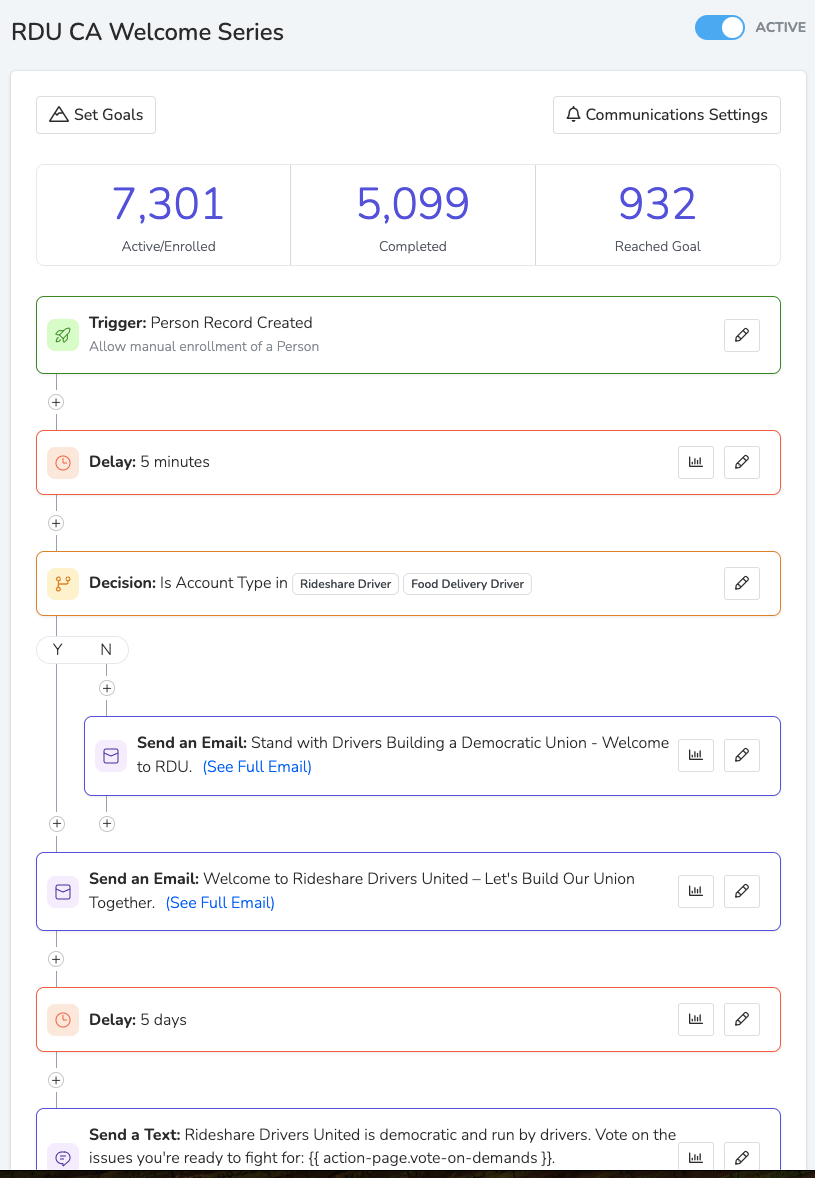
Triggers determine when someone enters an automation. You can combine multiple triggers in a single workflow.
Common Triggers
| Trigger | When It Fires |
|---|---|
| Form Submission | Someone submits any form or a specific form |
| Event RSVP | Someone RSVPs to any event, a specified event, or events with tags. You can filter by RSVP status (Yes, No, or Maybe). |
| Event Attendance | Someone is marked as attended at any event, a specified event, or events with tags |
| Person Record Creation | A new person is added to your database |
| Incoming Text Received | Someone texts your number. It can filter by the message content. |
| Answered Call | A call ends (can require minimum duration) |
| Tag Addition | Any tag, or a specified tag, is added to someone's profile |
| Assessment Change | Someone's assessment level changes |
| Successful Donation | Someone makes a donation (any donation page or a specific one) |
| Takes Any Action | A form submission, a Yes RSVP, an answered or incoming call, an incoming text, or a successful donation |
Additional triggers are available in the product, including email engagement triggers, link clicks, and more.
RSVP Status Filtering
For the Event RSVP and Event Session RSVP triggers, you can select which RSVP statuses (Yes, No, Maybe) should trigger enrollment. By default, only "Yes" RSVPs trigger the automation. This is useful if you want to run a follow up automation for people who RSVP "No" or "Maybe" to try to re-engage them, or if you want a single automation to handle all RSVP responses with different paths using a Decision Router.
Multiple Triggers
Automations support multiple triggers per workflow. Instead of building separate automations for each entry point, combine different triggers into one workflow.
Example: A volunteer recruitment automation could trigger from both "completed training form" AND "attended orientation event," ensuring no potential volunteer falls through the cracks.
Important: Automations Run Once Per Person
Automations only run once per person. After someone completes or exits an automation, they won't re-enter it even if they trigger it again. Email Opt-Out automations can enroll a person again.
This is by design - it prevents people from receiving the same welcome series twice or getting spammed by repetitive messages.
What if you need to re-run someone through an automation?
- Go to their person profile → Automations sidebar section
- If you have the 'Add Automation Enrollments' permission, find the automation, click the ⋮ menu, and select "Delete Enrollment" to allow them to re-enter
What if someone doesn't meet any conditions?
- If they go down the "NO" branch of a conditional and there are no further actions on that branch, they exit the automation automatically.
Message Content Filtering
For automations triggered by incoming text messages, you can create conditional logic based on message content.
Filter Options in the Triggering Message Content filter:
- contains: Finds the text anywhere in the message. It does not accept a regular expression.
- is: Matches only when the whole message equals the text. This match is case sensitive.
Example: Supporters text "Phonebank Tuesday" or "Training Saturday." A Decision Router has one condition for each keyword, and each branch uses RSVP to event for the matching event.
Actions
Actions are what happens after a trigger fires. See Automation Actions for the full list, including:
- Send email
- Send text
- Add follow-up task
- Assign agent
- RSVP to event
- Update tags
- Update custom property
- Webhook
Decision Router
The Decision Router lets you route supporters through different paths based on filter conditions. Unlike a simple yes/no conditional, the Decision Router can evaluate multiple conditions and execute different sets of actions for each matching segment.
How It Works
- Create conditions: Each condition has a name and a filter (e.g., "VIP Donors" where donation total > $500)
- Add actions to each condition: Each condition can have its own set of actions, delays, and even nested conditionals
- Choose execution mode:
- First match only: Runs the actions of the first condition that matches. The router checks the conditions in card order, from left to right.
- All matches: Runs each matching condition, unless "After Router Completes" is "Stop automation"
Use Cases
| Scenario | How to Use Decision Router |
|---|---|
| GOTV event routing | RSVP volunteers to phonebanks or trainings based on their location or availability |
| Tiered donor engagement | Send different thank-you messages and follow-ups based on donation amount ranges |
| Chapter-based routing | Direct supporters to chapter-specific actions based on their location |
| Engagement level paths | Create different nurture sequences for highly engaged vs. less active supporters |
Example: GOTV Volunteer Routing
A Decision Router that RSVPs volunteers to the right Get Out The Vote events:
- Brooklyn volunteers (chapter = Brooklyn): RSVP to Saturday Brooklyn Volunteer Training + send local details
- Manhattan volunteers (chapter = Manhattan): RSVP to Sunday Manhattan Phonebank + send office address
- Queens volunteers (chapter = Queens): RSVP to Saturday Queens Volunteer Meeting + send meeting point
With "First match only" mode, each volunteer is automatically registered for their local event and receives location-specific instructions.
Goals
Goals define when an automation should stop for a person. Once the goal is achieved, that person exits the workflow.
Available goals include:
- Sends us an SMS
- Submits a form
- Attends an event
- RSVPs to an event
- Has a call with us
- Makes a donation
- Schedules a Call
See Goals & Communication Settings for more details.
Communication Time Windows
Each automation has configurable communication settings that control when messages (emails and texts) can be delivered. By default, automations can send at any time. You can restrict delivery to specific hours and days of the week, and optionally skip US holidays.
When a message action is triggered outside the allowed window, the message is queued and delivered at the start of the next valid window. The window only delays messages and never drops them. A person without permission or contact details for that channel skips the message step.
Example: Your window is set to 9:00 AM to 8:00 PM on weekdays. Someone triggers a "Send text" action at 10:00 PM on a Tuesday. The text will be delivered at 9:00 AM on Wednesday. The delivery time is calculated based on the recipient's timezone.
Chaining Automations
Automations fire in parallel with no guaranteed order. If you need one automation to run before another, use a tag as the handoff:
- At the end of Automation A, add an action to tag the person (e.g., "completed-welcome-series")
- Set Automation B's trigger to Tag Addition, choose Specified tag, and pick the tag "completed-welcome-series"
Automation B starts only when the exact handoff tag is newly added to the person.
Troubleshooting Automations
If an automation isn't firing or people aren't progressing through the workflow, check these common causes:
People aren't entering the automation
- Already enrolled: Automations only run once per person, except with the Email Opt-Out trigger. If someone already went through (or was removed from) this automation, they won't re-enter. Go to their profile → Automations section and delete their enrollment to allow re-entry.
- Wrong scope: Scope follows the person, not the place of the action. The automation's scope must be one of the person's chapters, primary or secondary, or an organization above one of them. So a chapter automation fires for an organization level form submission by a member of that chapter.
- Trigger mismatch: Double check that the trigger matches exactly. For "Form Submission" triggers, verify you selected the correct form (or "Any form"). For "Event RSVP" triggers, verify the correct event and RSVP status (Yes/No/Maybe) are selected.
- Automation is off: Only active automations enroll people. On the automations list, an automation that is off shows an Inactive badge. Turn it on with Turn on. When it has errors, fix them first.
Messages aren't being sent
- Communication time window: If you've set a communication window (e.g., 9 AM to 8 PM weekdays), messages triggered outside that window are queued until the next valid window. They're not skipped, just delayed.
- No email/text permission: The person must have email or text permission enabled for that message type to be delivered. Check their profile for permission status.
- Missing contact info: If the action is "Send email" but the person has no email address, or "Send text" but no phone number, the action is skipped for that person.
Decision Router not routing correctly
- Check filter conditions: Open each condition and verify the filter matches what you expect. Test with a known person to see which condition they'd match.
- Execution mode: "First match only" stops after the first matching condition. If someone matches multiple conditions, only the first one runs. Use "All matches" with "After Router Completes" set to "Continue to next step" if you want them to go down multiple paths.
- Timing: Filters evaluate the person's data at the moment they reach the Decision Router, not when they first entered the automation. If there's a delay before the router, the person's data may have changed.
Person stuck at a step
- Delay in progress: If there's a delay action (e.g., "Wait 3 days"), the person will appear stuck until the delay completes. The Automations section of the person's profile shows the step they are on. No screen shows when a delay ends.
- Goal already achieved: If the person achieved the automation's goal, they exit the workflow immediately. A goal counts when the person takes the goal action while they are in the automation. A goal met before the person entered does not remove them.
Building Effective Automations
- Start simple: Begin with one trigger and a few actions, then expand
- Use delays wisely: Space out messages to avoid overwhelming supporters
- Set clear goals: Define what success looks like so automations stop appropriately
- Test before launching: Turn the automation on and take the trigger action with your own record. To test again, use Delete Enrollment on your profile.
- Monitor analytics: Track performance and iterate based on results
Updated 2 days ago