
Event Automations
Event automations make it easy to send automated or semi-automated follow-up communications after a Person RSVPs to your event. Automations are configured from the Automations tab within an event.
All automated messages support multiple languages - if you've added supported languages in Event Settings, you can customize each message in those languages. People receive messages in their preferred language.
Where to Find What:
- Event reminders and RSVP text replies → Event → Automations tab
- Post-submission confirmation (sent immediately when they RSVP) → Event Page → Post-Submission tab
If you can't find where a certain text or email is coming from, check both locations.
Automated Communications
These are triggered automatically without any input from a Team Member.
Immediate Email Confirmation
The Email Confirmation toggle sends a customizable email with a calendar invitation once a Person RSVPs. For virtual events, the invitation includes the meeting URL.
Day Before Event Email
The Email Reminder toggle sends an email reminder 24 hours before the event session begins. If you have RSVP confirmations enabled, this email includes a button where attendees can confirm their attendance.
Day Before Event Text
The day before Text Reminder toggle sends a text reminder 24 hours before the event session begins. Disabled by default. With Continued Delivery on, each new Yes RSVP after the batch send also gets the text.
Day of Event Text
The day of Text Reminder toggle sends a text reminder 1 hour before the event session begins.
Self Check-in Text
Sends a text 10 minutes before the event session begins with a self check-in link, so attendees can check themselves in. Requires Host Tools to be enabled. Disabled by default. With Continued Delivery on, new matching RSVPs also get the text until the session ends. It sends only from 7 AM to before 10 PM in the event's timezone (the timezone of its chapter or organization).
Event Follow-up Email
Sends a follow-up email after the event session ends, to Only Attendees (people with an attendance record) or All RSVPs (Yes and Maybe). For events with Zoom connected, it waits longer so attendance has time to sync first. Use the {{ event-session.post-event-survey-url }} merge tag to include a link to the post-event feedback survey. Disabled by default.
Event Follow-up Text
Sends a follow-up text after the event session ends. Same timing and recipient targeting as the Event Follow-up Email. A follow-up text due outside 7 AM to 10 PM in the event's timezone waits until 7 AM. It also supports the post-event feedback survey link. Disabled by default.
Custom Reminders
Note: Custom Reminders are on the Standard, Professional, and Enterprise plans. On other plans, the Custom Reminders section shows an upgrade prompt. The built-in automations above work on every plan.
Custom reminders let you add your own email or text reminders, with your own timing, content, and audience. Click + Add Custom Reminder in the Custom Reminders section of the Automations tab. Then set Send As (Email or Text Message), Send Timing (a number of hours before each session, or a set time the day before or the day of), and Send To (Yes RSVPs, or Yes & Maybe RSVPs).
Times for the day-before and day-of options use the timezone of the chapter or organization that owns the event. A text reminder set outside your organization's 'Texting Hours' shows a warning after you save it. With Continued Delivery on, each person who RSVPs after the send time, with an RSVP that matches 'Send To', gets the reminder until the session starts.
Use the toggle on each row to pause a reminder. Deleting a reminder cancels any pending scheduled sends for upcoming sessions.
Team Member Triggered Communications
These give Team Members a pre-filled template they can send with one click.
RSVP Text Replies
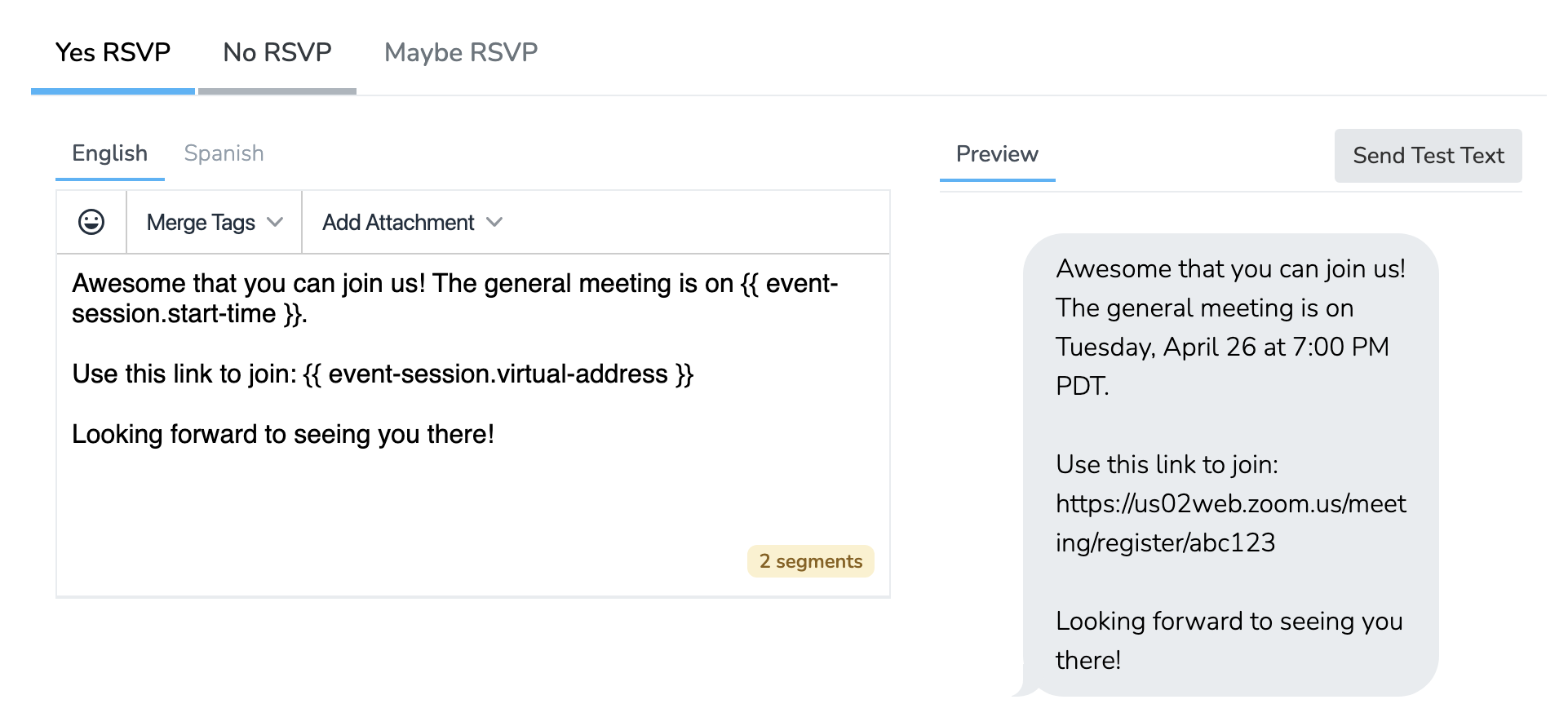
Pre-drafted text messages that Team Members can send after marking someone's RSVP status. When a Team Member marks a Person as Yes, No, or Maybe from the app or dashboard, they're given the option to send the corresponding text reply.
Event Text Templates
Event-specific text templates show in the template picker when a team member calls or texts a person for this event. These work exactly like regular Text Templates but are scoped to the event.
Merge Tags
Use merge tags to personalize your automated messages. These variables are replaced with actual values when the message is sent.
Person Tags
| Tag | Description |
|---|---|
{{ user.first-name }} | Person's first name |
{{ user.last-name }} | Person's last name |
{{ user.full-name }} | Person's full name |
Organization Tags
| Tag | Description |
|---|---|
{{ organization.name }} | Name of the chapter or organization that owns the event |
Event Tags
| Tag | Description |
|---|---|
{{ event.title }} | Event title |
{{ event.type }} | Session type, or the event type when there is no session. The values are in_person and virtual. |
Event Session Tags
| Tag | Description |
|---|---|
{{ event-session.title }} | Session title |
{{ event-session.start-time }} | Full start time (e.g., "Tuesday, March 15 at 6:00 PM EST") |
{{ event-session.start-time-only-time }} | Just the time (e.g., "6:00 PM EST") |
{{ event-session.end-time }} | Full end time |
{{ event-session.location-name }} | Location name (in-person events) |
{{ event-session.location-address }} | Street address (in-person events) |
{{ event-session.virtual-address }} | Meeting URL (virtual events) |
{{ event-session.note }} | Session notes |
{{ event-session.self-checkin-url }} | Link to the self check-in page for the session, prefilled for the recipient in the Self Check-in Text |
{{ event-session.post-event-survey-url }} | Personal link to the post-event feedback survey. Custom reminders and other event emails leave it blank |
Important: You cannot use merge tags inside the event session note field. The note must be plain text. Only the{{ event-session.note }}tag itself gets replaced - not variables within the note content.
Post-Event Survey
When the Event Follow-up Email or Event Follow-up Text includes the {{ event-session.post-event-survey-url }} merge tag, recipients get a short feedback form for that session. It asks for a 1 to 5 rating, whether they were able to attend, and an optional comment. Each link is unique per recipient. The survey opens once the session ends and stays open for a limited time.
To see the responses, open the actions menu on the event's RSVPs tab and choose View Survey Responses. You can filter by session and export to CSV.
Updated 17 days ago